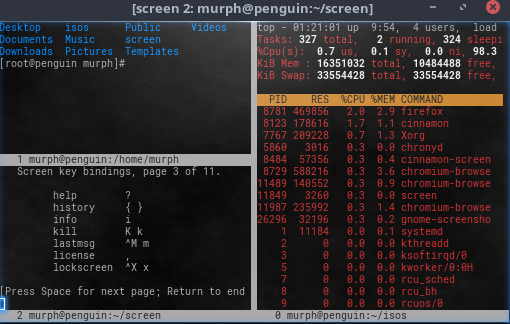
<html> <p>GNU Screen (or just Screen) is a useful and versatile, but somewhat under-appreciated utility that, as part of the GNU project, is included or available in nearly every Linux or UNIX distribution. Screen is a terminal multiplexer, similar to what you would find in a window manager. It is an especially helpful utility if you are restricted to working on a computer or a virtual machine either over an SSH link or through a terminal session on the console. Two of the features that I find most useful are the ability to open multiple windows within the screen session, and the ability to disconnect and reconnect Screen without losing the current session.</p><p>Screen is started simply with the <strong>screen</strong> command.</p> <h2>Screen basics</h2> <p>First, a little bit about how to control Screen. Screen works with a control sequence, <strong>Ctrl+a</strong>. All characters typed in a screen session are sent directly to the shell, with the exception of <strong>Ctrl+a</strong>. <strong>Ctrl+a</strong> followed by a character is how you send command sequences to screen. For example <strong>Ctrl+a</strong> <strong>? </strong>brings up the help page with the default key bindings.</p> <p>Screen allows you to create multiple windows within your single terminal session. Typing <strong>Ctrl+a</strong> <strong>c</strong> starts a new window within Screen. This acts like an independent window with its own shell. <strong>Ctrl+a</strong> <strong>K</strong> will kill the current window.</p> <p><strong>Ctrl+a n</strong> and <strong>Ctrl+a</strong> <strong>p</strong> will move to the next and previous screens respectively. Alternately, <strong>Ctrl+a # </strong>switches between screen sessions by number, in the order that they were started in. There is also a command that displays a list of all the current windows, and allows for selection with the cursor keys, <strong>Ctrl+a</strong> <strong>„</strong>.</p> <p>One of the most powerful features of Screen is the ability to disconnect and reconnect your screen sessions. This can be most useful when you are on an unreliable connection, or if you know you'll be moving from one network to another, or one computer to another. <strong>Ctrl+a d </strong>disconnects your screen session. You can then log out of your SSH session. When you want to continue, log in again and start screen with the <strong>-r </strong>(for resume) option.</p> <p>Your screen session will resume from where you left off, with all processes running as you left them. If your session were to disconnect abruptly, you can similarly reconnect with the same command. If the host has not acknowledged that your session has disconnected, you can use <strong>screen -r -d</strong> for resume and disconnect to allow screen to disconnect the session, and reconnect. This can be a lifesaver if your network connection is unreliable.</p> <h2>Installing Screen</h2> <p>Screen is installed by default on some distributions, such as SuSE and Slackware. On all of the Linux distributions that I tried it on, I was able to use the standard package manager to install screen from the default repositories. For example, on Red Hat Enterprise Linux or Fedora, I was able to use <strong>yum</strong> or <strong>dnf</strong>, respectively, to install. Under Debian and derivatives like Ubuntu, you can do the same with <strong>apt-get</strong>. I was able to install screen using ports on FreeBSD as well.</p> <h2>More advanced Screen features</h2> <p>Screen sessions can be split. A horizontal split is done with <strong>Ctrl+a S</strong>. This will split your current window in half horizontally. Switching between the regions is done with <strong>Ctrl+a Tab</strong>. The other window switching commands work within a split screen. A split window can be eliminated with <strong>Ctrl+a X</strong>. In more recent versions of screen, a vertical split can be created with <strong>Ctrl+a |</strong>.</p> <p class=„rtecenter“><img alt=„advanced screen features“ class=„media-image attrtypeoffoaf:Image imgfid344266 imgview_modedefault attrformatdefault attrfield_file_image_alt_text[und][0][value]advanced screen features attrfield_file_image_title_text[und][0][value]advanced attrfield_file_image_caption[und][0][value]&lt;p&gt;Bob Murphy screenshot&lt;/p&gt; attrfield_file_image_caption[und][0][format]panopoly_wysiwyg_text attrfield_folder[und]9402“ height=„324“ src=„https://opensource.com/sites/default/files/screenshot3_1.png“ title=„advanced screen features“ typeof=„foaf:Image“ width=„510“/></p> <p>Log files of current screen sessions can be started with the <strong>Ctrl+a</strong> H command, which will make a file called<strong> </strong><strong>screenlog</strong><strong>.X</strong> where <strong>X</strong> is the number of your screen session. A screenshot of what is currently in your screen window can be invoked with <strong>Ctrl+a</strong> <strong>h</strong>, creating a file called <strong>hardcopy.X</strong>. A screen session can be locked with the <strong>Ctrl+a</strong> <strong>x</strong> command which will lock the screen with the current user's password.</p> <h2>Why GNU Screen?</h2> <p>I am frequently asked why to use Screen instead of something newer like <a href=„https://opensource.com/article/17/2/quick-introduction-tmux“>tmux</a>? My answer is simple: GNU Screen is easy to use, and ubiquitous. It was already installed on the servers that I work on, and does the jobs I need perfectly. If there was a deficiency that needed to be addressed, I'd quickly look for a better tool, but Screen does the job I need it to. Hopefully, you'll find GNU Screen as useful as I do, and take advantage of this frequently overlooked utility.</p> <p>For more on GNU Screen, read the <a href=„https://www.gnu.org/software/Screen/manual/Screen.html“ target=„_blank“>man page</a> or check out this <a href=„http://aperiodic.net/screen/quick_reference“ target=„_blank“>quick reference</a>.</p> <p><em>Bob Murphy will be giving a talk at SCALE 15x this year entitled: <em><a href=„https://www.socallinuxexpo.org/scale/15x/presentations/brief-introduction-gnu-screen-or-how-make-command-line-work-you-especially“ target=„_blank“>A brief introduction to GNU screen. (Or: how to make the command line work for you, especially when the network is conspiring to stop you.)</a></em></em></p> </html>