Orion/How Tos/Install Orion on Localhost
<html> <p>This page explains how to download, install, and run Orion on your local machine. </p><div id=„toc“ class=„toc“><p><h2>Contents</h2></p> <ul><li class=„toclevel-1 tocsection-1“><a href=„https://wiki.eclipse.org/Orion/How_Tos/Install_Orion_on_Localhost#Downloading_Orion“>1 Downloading Orion</a></li> <li class=„toclevel-1 tocsection-2“><a href=„https://wiki.eclipse.org/Orion/How_Tos/Install_Orion_on_Localhost#Starting_the_server“>2 Starting the server</a></li> <li class=„toclevel-1 tocsection-3“><a href=„https://wiki.eclipse.org/Orion/How_Tos/Install_Orion_on_Localhost#Stopping_the_server“>3 Stopping the server</a></li> <li class=„toclevel-1 tocsection-4“><a href=„https://wiki.eclipse.org/Orion/How_Tos/Install_Orion_on_Localhost#Using_Orion“>4 Using Orion</a> <ul><li class=„toclevel-2 tocsection-5“><a href=„https://wiki.eclipse.org/Orion/How_Tos/Install_Orion_on_Localhost#Getting_started“>4.1 Getting started</a></li> <li class=„toclevel-2 tocsection-6“><a href=„https://wiki.eclipse.org/Orion/How_Tos/Install_Orion_on_Localhost#Linking_to_existing_content“>4.2 Linking to existing content</a></li> </ul></li> </ul></div> <h2>Downloading Orion</h2> <ol><li>Download Orion for your platform from the <a rel=„nofollow“ class=„external text“ href=„http://download.eclipse.org/orion/“>download page</a>. Choose the most recent Stable Build. </li> <li>Unzip the zip file to a folder on your computer.<br/><b>Note:</b> Be sure to choose a folder that you have write access to.<br/><b>Mac OS X:</b> use the command line unzip. If you use the „Archive Utility“, make sure that you „<i>Allow Applications Downloaded form: Anywhere</i>“ in (System Preferences->Security & Privacy->General)</li></ol><h2>Starting the server</h2> <ol><li> Make sure you have Java installed - the server is implemented in Java and <b>requires</b> Java SE 6. (Does 'java -version' print something like: java version „1.6.0_22“?). You also need a modern HTML5-capable browser. We recommend Firefox 15 or greater, Chrome 21 or greater, or Internet Explorer 10 or greater.</li> <li> Launch the Orion server: <ul readability=„1“><li> <b>Linux:</b> Run
eclipse/orion
.</li> <li> <b>Mac OS X:</b> Double-click
eclipse/orion
.</li> <li readability=„2“> <b>Windows:</b> Double-click
eclipse\orion.exe
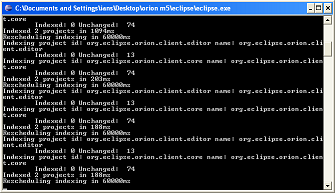
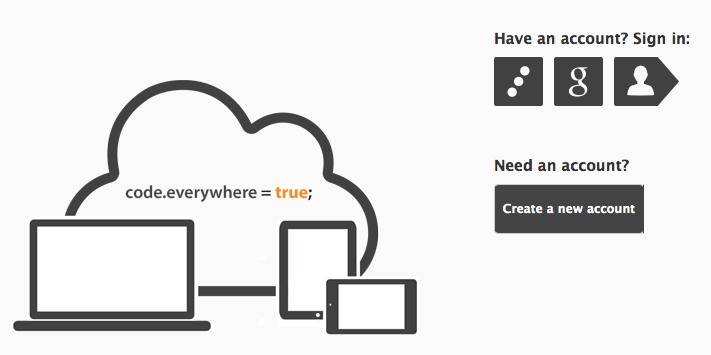
.<p>Once you launch the Orion server, the server console should start.</p><a href=„https://wiki.eclipse.org/File:Orion_Console.png“ class=„image“ title=„Orion Server Console“><img alt=„Orion Server Console“ src=„https://wiki.eclipse.org/images/0/07/Orion_Console.png“ width=„335“ height=„193“/></a></li></ul></li> <li> Now the server is running on port 8080. (If you want it to use a different port, change the setting in the orion.ini file. On Mac OS X, you will have to right-click on eclipse/eclipse and select „Show Package Contents“, then navigate into Contents/MacOS.)</li> <li> Point your web browser to <a rel=„nofollow“ class=„external free“ href=„http://localhost:8080/“>http://localhost:8080/</a>.</li> <li> You'll be directed to the Orion login screen:<br/><a href=„https://wiki.eclipse.org/File:Orion_Create_Account.png“ class=„image“ title=„Orion Login Screen“><img alt=„Orion Login Screen“ src=„https://wiki.eclipse.org/images/b/b3/Orion_Create_Account.png“ width=„725“ height=„343“/></a><br/>From here you can create a new account for yourself on your local Orion server, or connect Orion to an existing Google or Mozilla Persona account instead (both these two options require an initial Orion account).</li></ol><h2>Stopping the server</h2> <ol><li> Go to the server console window that opened when you launched the server.</li> <li> Type


close
and press Enter.</li></ol> <h2>Getting started</h2> <p>After you've got Orion installed and running, read <a href=„https://wiki.eclipse.org/Orion/Documentation/User_Guide/Getting_started“ title=„Orion/Documentation/User Guide/Getting started“> Getting started with Orion</a> for a brief tour of the user interface and basic features. </p> <h2>Linking to existing content</h2> <p>You can try out Orion's text editing features by editing existing files on your computer. </p> <ol><li> Configure the allowed local paths the Orion server can access. See the <a href=„https://wiki.eclipse.org/Orion/Server_admin_guide#Configuring_paths_where_users_can_store_files“ title=„Orion/Server admin guide“> Server administration guide</a> for details on how to configure what directories are available to the Orion server.</li> <li> Log in and click the „Link Folder“ button on the toolbar.</li> <li> Type in a name for the link, and in the <b>Server path:</b> field, enter the path to the folder you want to link to (it must be a subdirectory of one of the paths you supplied in Step 2). </li> <li> Click OK.</li> <li> You should now be able to browse and edit the contents of the folder from the Orion UI.</li></ol><!– NewPP limit report Cached time: 20170712235321 Cache expiry: 86400 Dynamic content: false CPU time usage: 0.096 seconds Real time usage: 0.160 seconds Preprocessor visited node count: 23/1000000 Preprocessor generated node count: 32/1000000 Post‐expand include size: 0/2097152 bytes Template argument size: 0/2097152 bytes Highest expansion depth: 2/40 Expensive parser function count: 0/100 –><!– Transclusion expansion time report (%,ms,calls,template) 100.00% 0.000 1 - -total –><!– Saved in parser cache with key my_wiki:pcache:idhash:29204-0!*!0!!en!5!* and timestamp 20170712235320 and revision id 335113 –> </html>
 Falls nicht anders bezeichnet, ist der Inhalt dieses Wikis unter der folgenden Lizenz veröffentlicht: CC Attribution-Noncommercial-Share Alike 4.0 International