Overview | Adafruit GFX Graphics Library
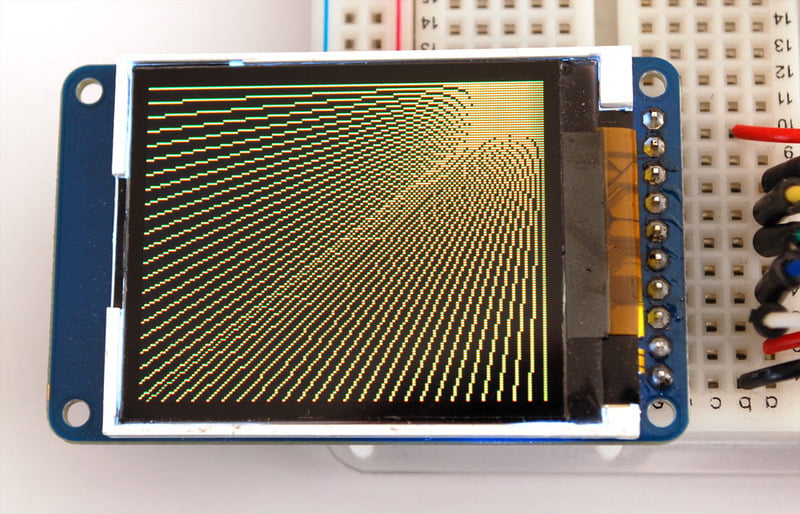
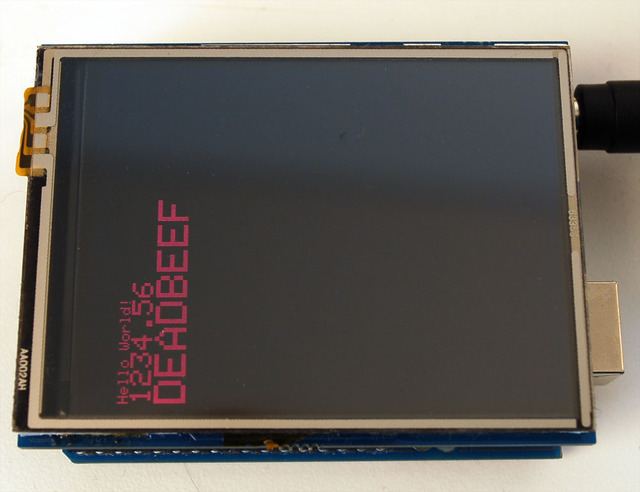
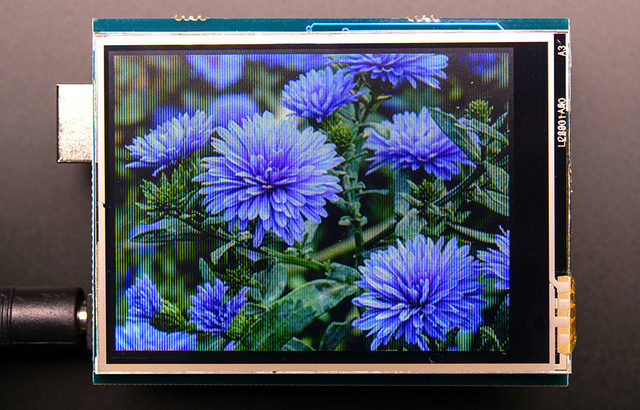
<html> <div class=„page-content all-page-view-content“ readability=„49“> <div class=„row-fluid build-image“><a href=„https://learn.adafruit.com/assets/1304“><img class=„1304-asset img-responsive“ srcset=„https://cdn-learn.adafruit.com/assets/assets/000/001/304/medium260/lcds___displays_ID797tri_LRG.jpg?1396770841 260w, https://cdn-learn.adafruit.com/assets/assets/000/001/304/medium640/lcds___displays_ID797tri_LRG.jpg?1396770841 640w, https://cdn-learn.adafruit.com/assets/assets/000/001/304/medium800/lcds___displays_ID797tri_LRG.jpg?1396770841 800w, https://cdn-learn.adafruit.com/assets/assets/000/001/304/large1024/lcds___displays_ID797tri_LRG.jpg?1396770841 1024w“ sizes=„(max-width: 768px) 100vw, (max-width: 1024px) 65vw, (max-width: 1365px) 47vw, 750px“ src=„https://cdn-learn.adafruit.com/assets/assets/000/001/304/medium800/lcds___displays_ID797tri_LRG.jpg?1396770841“ alt=„lcds_displays_ID797tri_LRG.jpg“/></a></div> <p>The Adafruit_GFX library for Arduino provides a common syntax and set of graphics functions for all of our LCD and OLED displays. This allows Arduino sketches to easily be adapted between display types with minimal fuss…and any new features, performance improvements and bug fixes will immediately apply across our complete offering of color displays.</p> <div class=„row-fluid build-text“ readability=„34“> <p>The <strong>Adafruit_GFX</strong> library can be installed using the <strong>Arduino Library Manager</strong>…this is the preferred and modern way. From the Arduino “Sketch” menu, select “Include Library” then “Manage Libraries…”</p> </div> <div class=„row-fluid build-image“><a href=„https://learn.adafruit.com/assets/67406“><img class=„67406-asset img-responsive“ srcset=„https://cdn-learn.adafruit.com/assets/assets/000/067/406/medium260/graphic_lcds_manage-libraries.png?1544574799 260w, https://cdn-learn.adafruit.com/assets/assets/000/067/406/medium640/graphic_lcds_manage-libraries.png?1544574799 640w, https://cdn-learn.adafruit.com/assets/assets/000/067/406/medium800/graphic_lcds_manage-libraries.png?1544574799 800w, https://cdn-learn.adafruit.com/assets/assets/000/067/406/large1024/graphic_lcds_manage-libraries.png?1544574799 1024w“ sizes=„(max-width: 768px) 100vw, (max-width: 1024px) 65vw, (max-width: 1365px) 47vw, 750px“ src=„https://cdn-learn.adafruit.com/assets/assets/000/067/406/medium800/graphic_lcds_manage-libraries.png?1544574799“ alt=„graphic_lcds_manage-libraries.png“/></a></div> <div class=„row-fluid build-text“ readability=„31“> <p>Type “gfx” in the search field to find it quickly:</p> </div> <div class=„row-fluid build-image“><a href=„https://learn.adafruit.com/assets/67407“><img class=„67407-asset img-responsive“ srcset=„https://cdn-learn.adafruit.com/assets/assets/000/067/407/medium260/graphic_lcds_adafruit-gfx-library-manager.png?1544574825 260w, https://cdn-learn.adafruit.com/assets/assets/000/067/407/medium640/graphic_lcds_adafruit-gfx-library-manager.png?1544574825 640w, https://cdn-learn.adafruit.com/assets/assets/000/067/407/medium800/graphic_lcds_adafruit-gfx-library-manager.png?1544574825 800w, https://cdn-learn.adafruit.com/assets/assets/000/067/407/large1024/graphic_lcds_adafruit-gfx-library-manager.png?1544574825 1024w“ sizes=„(max-width: 768px) 100vw, (max-width: 1024px) 65vw, (max-width: 1365px) 47vw, 750px“ src=„https://cdn-learn.adafruit.com/assets/assets/000/067/407/medium800/graphic_lcds_adafruit-gfx-library-manager.png?1544574825“ alt=„graphic_lcds_adafruit-gfx-library-manager.png“/></a></div> <div class=„row-fluid build-text“ readability=„25“> <p>While you’re there, also look for and install the <strong>Adafruit_ZeroDMA</strong> library.</p> <p>The Adafruit_GFX library always works together with an <em>additional</em> library unique to each specific display type — for example, the ST7735 1.8„ color LCD requires installing Adafruit_GFX, Adafruit_ZeroDMA <em>and</em> the Adafruit_ST7735 library. The following libraries now operate in this manner:</p> <ul><li><a title=„Link: https://github.com/adafruit/RGB-matrix-Panel“ href=„https://github.com/adafruit/RGB-matrix-Panel“>RGBmatrixPanel</a>, for our <a href=„http://www.adafruit.com/products/420“>16×32</a> and <a href=„http://www.adafruit.com/products/607“>32×32</a> RGB LED matrix panels.</li> <li><a title=„Link: https://github.com/adafruit/TFTLCD-Library“ href=„https://github.com/adafruit/TFTLCD-Library“>Adafruit_TFTLCD</a>, for our 2.8“ <a href=„http://www.adafruit.com/products/335“>TFT LCD touchscreen breakout</a> and <a href=„http://www.adafruit.com/products/376“>TFT Touch Shield for Arduino</a>.</li> <li><a href=„https://github.com/adafruit/Adafruit-HX8340B“>Adafruit_HX8340B</a>, for our <a href=„http://www.adafruit.com/products/797“>2.2„ TFT Display with microSD</a>.</li> <li><a href=„https://github.com/adafruit/Adafruit-ST7735-Library“>Adafruit_ST7735</a>, for our <a href=„http://www.adafruit.com/products/358“>1.8“ TFT Display with microSD</a>.</li> <li><a href=„https://github.com/adafruit/Adafruit-PCD8544-Nokia-5110-LCD-library“>Adafruit_PCD8544</a>, for the <a href=„http://www.adafruit.com/products/338“>Nokia 5110/3310 monochrome LCD</a>.</li> <li><a href=„https://github.com/adafruit/Adafruit-Graphic-VFD-Display-Library“>Adafruit-Graphic-VFD-Display-Library</a>, for our <a href=„https://www.adafruit.com/products/773“>128×64 Graphic VFD</a>.</li> <li><a href=„https://github.com/adafruit/Adafruit-SSD1331-OLED-Driver-Library-for-Arduino“>Adafruit-SSD1331-OLED-Driver-Library-for-Arduino</a> for the <a href=„http://www.adafruit.com/products/684“>0.96„ 16-bit Color OLED w/microSD Holder</a>.</li> <li><a href=„https://github.com/adafruit/Adafruit_SSD1306“>Adafruit_SSD1306</a> for the Monochrome <a href=„https://www.adafruit.com/products/326“>128×64</a> and <a href=„https://www.adafruit.com/products/661“>128×32</a> OLEDs.</li> </ul><p>The libraries are written in C++ for Arduino but could easily be ported to any microcontroller by rewriting the low-level pin access functions.</p> </div> <div class=„row-fluid build-text“ readability=„33“> <p>Older versions of the Arduino IDE software require installing libraries manually; the Arduino Library Manager did not yet exist. If using an early version of the Arduino software, this might be a good time to upgrade. Otherwise, <a href=„http://learn.adafruit.com/arduino-tips-tricks-and-techniques/arduino-libraries“>this tutorial explains how to install and use Arduino libraries</a>. Here are links to download the GFX and ZeroDMA libraries directly (use the links above to get the corresponding display-specific libraries):</p> </div> <p><a href=„https://github.com/adafruit/Adafruit-GFX-Library/archive/master.zip“ class=„btn btn-large btn-block btn-primary“ target=„_self“ data-zip-folder=“„ type=„button“>Download Adafruit_GFX Library</a></p> <p><a href=„https://github.com/adafruit/Adafruit_ZeroDMA/archive/master.zip“ class=„btn btn-large btn-block btn-primary“ target=„_self“ data-zip-folder=“„ type=„button“>Download Adafruit_ZeroDMA Library</a></p> </div><div class=„page-content all-page-view-content“ readability=„66“> <div class=„row-fluid build-text“ readability=„49“> <p>Pixels — picture elements, the blocks comprising a digital image — are addressed by their horizontal (X) and vertical (Y) coordinates. The coordinate system places the origin (0,0) at the top left corner, with positive X increasing to the right and positive Y increasing downward. This is upside-down relative to the standard Cartesian coordinate system of mathematics, but is established practice in many computer graphics systems (a throwback to the days of raster-scan CRT graphics, which worked top-to-bottom). To use a tall “portrait” layout rather than wide “landscape” format, or if physical constraints dictate the orientation of a display in an enclosure, one of four rotation settings can also be applied, indicating which corner of the display represents the top left.</p> <p>Also unlike the mathematical Cartesian coordinate system, points here have dimension — they are always one full integer pixel wide and tall.</p> </div> <div class=„row-fluid build-image“><a href=„https://learn.adafruit.com/assets/1264“><img class=„1264-asset img-responsive“ srcset=„https://cdn-learn.adafruit.com/assets/assets/000/001/264/medium260/lcds___displays_coordsys.png?1396770439 260w, https://cdn-learn.adafruit.com/assets/assets/000/001/264/medium640/lcds___displays_coordsys.png?1396770439 640w, https://cdn-learn.adafruit.com/assets/assets/000/001/264/medium800/lcds___displays_coordsys.png?1396770439 800w, https://cdn-learn.adafruit.com/assets/assets/000/001/264/large1024/lcds___displays_coordsys.png?1396770439 1024w“ sizes=“(max-width: 768px) 100vw, (max-width: 1024px) 65vw, (max-width: 1365px) 47vw, 750px„ src=„https://cdn-learn.adafruit.com/assets/assets/000/001/264/medium800/lcds___displays_coordsys.png?1396770439“ alt=„lcds_displays_coordsys.png“/></a></div> <div class=„row-fluid build-text“ readability=„53“> <p>Coordinates are always expressed in pixel units; there is no implicit scale to a real-world measure like millimeters or inches, and the size of a displayed graphic will be a function of that specific display’s <em>dot pitch</em> or pixel density. If you’re aiming for a real-world dimension, you’ll need to scale your coordinates to suit. Dot pitch can often be found in the device datasheet, or by measuring the screen width and dividing the number of pixels across by this measurement.</p> <p>For color-capable displays, colors are represented as unsigned 16-bit values. Some displays may physically be capable of more or fewer bits than this, but the library operates with 16-bit values…these are easy for the Arduino to work with while also providing a consistent data type across all the different displays. The primary color components — red, green and blue — are all “packed” into a single 16-bit variable, with the most significant 5 bits conveying red, middle 6 bits conveying green, and least significant 5 bits conveying blue. That extra bit is assigned to green because our eyes are most sensitive to green light. <em>Science!</em></p> </div> <div class=„row-fluid build-image“><a href=„https://learn.adafruit.com/assets/1265“><img class=„1265-asset img-responsive“ srcset=„https://cdn-learn.adafruit.com/assets/assets/000/001/265/medium260/lcds___displays_colorpack.png?1396770449 260w, https://cdn-learn.adafruit.com/assets/assets/000/001/265/medium640/lcds___displays_colorpack.png?1396770449 640w, https://cdn-learn.adafruit.com/assets/assets/000/001/265/medium800/lcds___displays_colorpack.png?1396770449 800w, https://cdn-learn.adafruit.com/assets/assets/000/001/265/large1024/lcds___displays_colorpack.png?1396770449 1024w“ sizes=“(max-width: 768px) 100vw, (max-width: 1024px) 65vw, (max-width: 1365px) 47vw, 750px„ src=„https://cdn-learn.adafruit.com/assets/assets/000/001/265/medium800/lcds___displays_colorpack.png?1396770449“ alt=„lcds_displays_colorpack.png“/></a></div> <div class=„row-fluid build-text“ readability=„39“> <p>For the most common primary and secondary colors, we have this handy cheat-sheet that you can include in your own code. Of course, you can pick any of 65,536 different colors, but this basic list may be easiest when starting out:</p> </div> <div class=„build-code code-element“ readability=„9“> <pre class=„code-text-only c4“> Color definitions #define BLACK 0x0000 #define BLUE 0x001F #define RED 0xF800 #define GREEN 0x07E0 #define CYAN 0x07FF #define MAGENTA 0xF81F #define YELLOW 0xFFE0 #define WHITE 0xFFFF</pre> <pre class=„prettyprint linenums“> Color definitions #define BLACK 0x0000 #define BLUE 0x001F #define RED 0xF800 #define GREEN 0x07E0 #define CYAN 0x07FF #define MAGENTA 0xF81F #define YELLOW 0xFFE0 #define WHITE 0xFFFF</pre></div> <div class=„row-fluid build-text“ readability=„43“> <p>For monochrome (single-color) displays, colors are always specified as simply 1 (set) or 0 (clear). The semantics of set/clear are specific to the type of display: with something like a luminous OLED display, a “set” pixel is lighted, whereas with a reflective LCD display, a “set” pixel is typically dark. There may be exceptions, but generally you can count on 0 (clear) representing the default background state for a freshly-initialized display, whatever that works out to be.</p> </div> </div><div class=„page-content all-page-view-content“ readability=„178“> <div class=„row-fluid build-text“ readability=„50“>Each device-specific display library will have its own constructors and initialization functions. These are documented in the individual tutorials for each display type, or oftentimes are evident in the specific library header file. The remainder of this tutorial covers the common graphics functions that work the same regardless of the display type. <p>The function descriptions below are merely <em>prototypes</em> — there’s an assumption that a display object is declared and initialized as needed by the device-specific library. Look at the example code with each library to see it in actual use. For example, where we show print(1234.56), your actual code would place the object name before this, e.g. it might read screen.print(1234.56) (if you have declared your display object with the name screen).</p> First up is the most basic pixel pusher. You can call this with X, Y coordinates and a color and it will make a single dot:</div> <div class=„build-code code-element“ readability=„11“> <pre class=„code-text-only c4“>void drawPixel(uint16_t x, uint16_t y, uint16_t color);</pre> <pre class=„prettyprint linenums“>void drawPixel(uint16_t x, uint16_t y, uint16_t color);</pre></div> <div class=„row-fluid build-image“><a href=„https://learn.adafruit.com/assets/1267“><img class=„1267-asset img-responsive“ srcset=„https://cdn-learn.adafruit.com/assets/assets/000/001/267/medium260/lcds___displays_st7735pixel.jpg?1396770465 260w, https://cdn-learn.adafruit.com/assets/assets/000/001/267/medium640/lcds___displays_st7735pixel.jpg?1396770465 640w, https://cdn-learn.adafruit.com/assets/assets/000/001/267/medium800/lcds___displays_st7735pixel.jpg?1396770465 800w, https://cdn-learn.adafruit.com/assets/assets/000/001/267/large1024/lcds___displays_st7735pixel.jpg?1396770465 1024w“ sizes=“(max-width: 768px) 100vw, (max-width: 1024px) 65vw, (max-width: 1365px) 47vw, 750px„ src=„https://cdn-learn.adafruit.com/assets/assets/000/001/267/medium800/lcds___displays_st7735pixel.jpg?1396770465“ alt=„lcds_displays_st7735pixel.jpg“/></a></div> <div class=„row-fluid build-text“ readability=„27“> <p>You can also draw lines, with a starting and end point and color:</p> </div> <div class=„build-code code-element“ readability=„15“> <pre class=„code-text-only c4“>void drawLine(uint16_t x0, uint16_t y0, uint16_t x1, uint16_t y1, uint16_t color);</pre> <pre class=„prettyprint linenums“>void drawLine(uint16_t x0, uint16_t y0, uint16_t x1, uint16_t y1, uint16_t color);</pre></div> <div class=„row-fluid build-image“><a href=„https://learn.adafruit.com/assets/1268“><img class=„1268-asset img-responsive“ srcset=„https://cdn-learn.adafruit.com/assets/assets/000/001/268/medium260/lcds___displays_line.png?1396770476 260w, https://cdn-learn.adafruit.com/assets/assets/000/001/268/medium640/lcds___displays_line.png?1396770476 640w, https://cdn-learn.adafruit.com/assets/assets/000/001/268/medium800/lcds___displays_line.png?1396770476 800w, https://cdn-learn.adafruit.com/assets/assets/000/001/268/large1024/lcds___displays_line.png?1396770476 1024w“ sizes=“(max-width: 768px) 100vw, (max-width: 1024px) 65vw, (max-width: 1365px) 47vw, 750px„ src=„https://cdn-learn.adafruit.com/assets/assets/000/001/268/medium800/lcds___displays_line.png?1396770476“ alt=„lcds_displays_line.png“/></a></div> <div class=„row-fluid build-image“><a href=„https://learn.adafruit.com/assets/1269“><img class=„1269-asset img-responsive“ srcset=„https://cdn-learn.adafruit.com/assets/assets/000/001/269/medium260/lcds___displays_st7735lines.jpg?1396770485 260w, https://cdn-learn.adafruit.com/assets/assets/000/001/269/medium640/lcds___displays_st7735lines.jpg?1396770485 640w, https://cdn-learn.adafruit.com/assets/assets/000/001/269/medium800/lcds___displays_st7735lines.jpg?1396770485 800w, https://cdn-learn.adafruit.com/assets/assets/000/001/269/large1024/lcds___displays_st7735lines.jpg?1396770485 1024w“ sizes=“(max-width: 768px) 100vw, (max-width: 1024px) 65vw, (max-width: 1365px) 47vw, 750px„ src=„https://cdn-learn.adafruit.com/assets/assets/000/001/269/medium800/lcds___displays_st7735lines.jpg?1396770485“ alt=„lcds_displays_st7735lines.jpg“/></a></div> <div class=„row-fluid build-text“ readability=„33“> <p>For horizontal or vertical lines, there are optimized line-drawing functions that avoid the angular calculations:</p> </div> <div class=„build-code code-element“ readability=„21“> <pre class=„code-text-only c4“>void drawFastVLine(uint16_t x0, uint16_t y0, uint16_t length, uint16_t color); void drawFastHLine(uint8_t x0, uint8_t y0, uint8_t length, uint16_t color);</pre> <pre class=„prettyprint linenums“>void drawFastVLine(uint16_t x0, uint16_t y0, uint16_t length, uint16_t color); void drawFastHLine(uint8_t x0, uint8_t y0, uint8_t length, uint16_t color);</pre></div> <div class=„row-fluid build-text“ readability=„39“> <p>Next up, rectangles and squares can be drawn and filled using the following procedures. Each accepts an X, Y pair for the top-left corner of the rectangle, a width and height (in pixels), and a color. drawRect() renders just the frame (outline) of the rectangle — the interior is unaffected — while fillRect() fills the entire area with a given color:</p> </div> <div class=„build-code code-element“ readability=„27“> <pre class=„code-text-only c4“>void drawRect(uint16_t x0, uint16_t y0, uint16_t w, uint16_t h, uint16_t color); void fillRect(uint16_t x0, uint16_t y0, uint16_t w, uint16_t h, uint16_t color);</pre> <pre class=„prettyprint linenums“>void drawRect(uint16_t x0, uint16_t y0, uint16_t w, uint16_t h, uint16_t color); void fillRect(uint16_t x0, uint16_t y0, uint16_t w, uint16_t h, uint16_t color);</pre></div> <div class=„row-fluid build-image“><a href=„https://learn.adafruit.com/assets/1270“><img class=„1270-asset img-responsive“ srcset=„https://cdn-learn.adafruit.com/assets/assets/000/001/270/medium260/lcds___displays_rect.png?1396770497 260w, https://cdn-learn.adafruit.com/assets/assets/000/001/270/medium640/lcds___displays_rect.png?1396770497 640w, https://cdn-learn.adafruit.com/assets/assets/000/001/270/medium800/lcds___displays_rect.png?1396770497 800w, https://cdn-learn.adafruit.com/assets/assets/000/001/270/large1024/lcds___displays_rect.png?1396770497 1024w“ sizes=“(max-width: 768px) 100vw, (max-width: 1024px) 65vw, (max-width: 1365px) 47vw, 750px„ src=„https://cdn-learn.adafruit.com/assets/assets/000/001/270/medium800/lcds___displays_rect.png?1396770497“ alt=„lcds_displays_rect.png“/></a></div> <div class=„row-fluid build-image“><a href=„https://learn.adafruit.com/assets/1271“><img class=„1271-asset img-responsive“ srcset=„https://cdn-learn.adafruit.com/assets/assets/000/001/271/medium260/lcds___displays_st7735squares.jpg?1396770504 260w, https://cdn-learn.adafruit.com/assets/assets/000/001/271/medium640/lcds___displays_st7735squares.jpg?1396770504 640w, https://cdn-learn.adafruit.com/assets/assets/000/001/271/medium800/lcds___displays_st7735squares.jpg?1396770504 800w, https://cdn-learn.adafruit.com/assets/assets/000/001/271/large1024/lcds___displays_st7735squares.jpg?1396770504 1024w“ sizes=“(max-width: 768px) 100vw, (max-width: 1024px) 65vw, (max-width: 1365px) 47vw, 750px„ src=„https://cdn-learn.adafruit.com/assets/assets/000/001/271/medium800/lcds___displays_st7735squares.jpg?1396770504“ alt=„lcds_displays_st7735squares.jpg“/></a></div> <div class=„row-fluid build-text“ readability=„41“> <p>To create a solid rectangle with a contrasting outline, use fillRect() first, then drawRect() over it.</p> <p>Likewise, for circles, you can draw and fill. Each function accepts an X, Y pair for the center point, a radius in pixels, and a color:</p> </div> <div class=„build-code code-element“ readability=„21“> <pre class=„code-text-only c4“>void drawCircle(uint16_t x0, uint16_t y0, uint16_t r, uint16_t color); void fillCircle(uint16_t x0, uint16_t y0, uint16_t r, uint16_t color);</pre> <pre class=„prettyprint linenums“>void drawCircle(uint16_t x0, uint16_t y0, uint16_t r, uint16_t color); void fillCircle(uint16_t x0, uint16_t y0, uint16_t r, uint16_t color);</pre></div> <div class=„row-fluid build-image“><a href=„https://learn.adafruit.com/assets/1272“><img class=„1272-asset img-responsive“ srcset=„https://cdn-learn.adafruit.com/assets/assets/000/001/272/medium260/lcds___displays_circle.png?1396770516 260w, https://cdn-learn.adafruit.com/assets/assets/000/001/272/medium640/lcds___displays_circle.png?1396770516 640w, https://cdn-learn.adafruit.com/assets/assets/000/001/272/medium800/lcds___displays_circle.png?1396770516 800w, https://cdn-learn.adafruit.com/assets/assets/000/001/272/large1024/lcds___displays_circle.png?1396770516 1024w“ sizes=“(max-width: 768px) 100vw, (max-width: 1024px) 65vw, (max-width: 1365px) 47vw, 750px„ src=„https://cdn-learn.adafruit.com/assets/assets/000/001/272/medium800/lcds___displays_circle.png?1396770516“ alt=„lcds_displays_circle.png“/></a></div> <div class=„row-fluid build-image“><a href=„https://learn.adafruit.com/assets/1273“><img class=„1273-asset img-responsive“ srcset=„https://cdn-learn.adafruit.com/assets/assets/000/001/273/medium260/lcds___displays_st7735circles.jpg?1396770524 260w, https://cdn-learn.adafruit.com/assets/assets/000/001/273/medium640/lcds___displays_st7735circles.jpg?1396770524 640w, https://cdn-learn.adafruit.com/assets/assets/000/001/273/medium800/lcds___displays_st7735circles.jpg?1396770524 800w, https://cdn-learn.adafruit.com/assets/assets/000/001/273/large1024/lcds___displays_st7735circles.jpg?1396770524 1024w“ sizes=“(max-width: 768px) 100vw, (max-width: 1024px) 65vw, (max-width: 1365px) 47vw, 750px„ src=„https://cdn-learn.adafruit.com/assets/assets/000/001/273/medium800/lcds___displays_st7735circles.jpg?1396770524“ alt=„lcds_displays_st7735circles.jpg“/></a></div> <div class=„row-fluid build-text“ readability=„35“> <p>For rectangles with rounded corners, both draw and fill functions are again available. Each begins with an X, Y, width and height (just like normal rectangles), then there’s a corner radius (in pixels) and finally the color value:</p> </div> <div class=„build-code code-element“ readability=„33“> <pre class=„code-text-only c4“>void drawRoundRect(uint16_t x0, uint16_t y0, uint16_t w, uint16_t h, uint16_t radius, uint16_t color); void fillRoundRect(uint16_t x0, uint16_t y0, uint16_t w, uint16_t h, uint16_t radius, uint16_t color);</pre> <pre class=„prettyprint linenums“>void drawRoundRect(uint16_t x0, uint16_t y0, uint16_t w, uint16_t h, uint16_t radius, uint16_t color); void fillRoundRect(uint16_t x0, uint16_t y0, uint16_t w, uint16_t h, uint16_t radius, uint16_t color);</pre></div> <div class=„row-fluid build-image“><a href=„https://learn.adafruit.com/assets/1274“><img class=„1274-asset img-responsive“ srcset=„https://cdn-learn.adafruit.com/assets/assets/000/001/274/medium260/lcds___displays_roundrect.png?1396770535 260w, https://cdn-learn.adafruit.com/assets/assets/000/001/274/medium640/lcds___displays_roundrect.png?1396770535 640w, https://cdn-learn.adafruit.com/assets/assets/000/001/274/medium800/lcds___displays_roundrect.png?1396770535 800w, https://cdn-learn.adafruit.com/assets/assets/000/001/274/large1024/lcds___displays_roundrect.png?1396770535 1024w“ sizes=“(max-width: 768px) 100vw, (max-width: 1024px) 65vw, (max-width: 1365px) 47vw, 750px„ src=„https://cdn-learn.adafruit.com/assets/assets/000/001/274/medium800/lcds___displays_roundrect.png?1396770535“ alt=„lcds_displays_roundrect.png“/></a></div> <div class=„row-fluid build-text“ readability=„45“> <p>Here’s an added bonus trick: because the circle functions are always drawn relative to a center pixel, the resulting circle diameter will always be an odd number of pixels. If an even-sized circle is required (which would place the center point <em>between</em> pixels), this can be achieved using one of the rounded rectangle functions: pass an identical width and height that are even values, and a corner radius that’s exactly half this value.</p> <p>With triangles, once again there are the draw and fill functions. Each requires a full seven parameters: the X, Y coordinates for three corner points defining the triangle, followed by a color:</p> </div> <div class=„build-code code-element“ readability=„37“> <pre class=„code-text-only c4“>void drawTriangle(uint16_t x0, uint16_t y0, uint16_t x1, uint16_t y1, uint16_t x2, uint16_t y2, uint16_t color); void fillTriangle(uint16_t x0, uint16_t y0, uint16_t x1, uint16_t y1, uint16_t x2, uint16_t y2, uint16_t color);</pre> <pre class=„prettyprint linenums“>void drawTriangle(uint16_t x0, uint16_t y0, uint16_t x1, uint16_t y1, uint16_t x2, uint16_t y2, uint16_t color); void fillTriangle(uint16_t x0, uint16_t y0, uint16_t x1, uint16_t y1, uint16_t x2, uint16_t y2, uint16_t color);</pre></div> <div class=„row-fluid build-image“><a href=„https://learn.adafruit.com/assets/1275“><img class=„1275-asset img-responsive“ srcset=„https://cdn-learn.adafruit.com/assets/assets/000/001/275/medium260/lcds___displays_triangle.png?1396770547 260w, https://cdn-learn.adafruit.com/assets/assets/000/001/275/medium640/lcds___displays_triangle.png?1396770547 640w, https://cdn-learn.adafruit.com/assets/assets/000/001/275/medium800/lcds___displays_triangle.png?1396770547 800w, https://cdn-learn.adafruit.com/assets/assets/000/001/275/large1024/lcds___displays_triangle.png?1396770547 1024w“ sizes=“(max-width: 768px) 100vw, (max-width: 1024px) 65vw, (max-width: 1365px) 47vw, 750px„ src=„https://cdn-learn.adafruit.com/assets/assets/000/001/275/medium800/lcds___displays_triangle.png?1396770547“ alt=„lcds_displays_triangle.png“/></a></div> <div class=„row-fluid build-text“ readability=„37“> <p>There are two basic string drawing procedures for adding text. The first is just for a single character. You can place this character at any location and with any color. There’s only one font (to save on space) and it’s meant to be 5×8 pixels, but an optional size parameter can be passed which scales the font by this factor (e.g. size=2 will render the text at 10×16 pixels per character). It’s a little blocky but having just a single font helps keep the program size down.</p> </div> <div class=„build-code code-element“ readability=„17“> <pre class=„code-text-only c4“>void drawChar(uint16_t x, uint16_t y, char c, uint16_t color, uint16_t bg, uint8_t size);</pre> <pre class=„prettyprint linenums“>void drawChar(uint16_t x, uint16_t y, char c, uint16_t color, uint16_t bg, uint8_t size);</pre></div> <div class=„row-fluid build-image“><a href=„https://learn.adafruit.com/assets/1276“><img class=„1276-asset img-responsive“ srcset=„https://cdn-learn.adafruit.com/assets/assets/000/001/276/medium260/lcds___displays_char.png?1396770557 260w, https://cdn-learn.adafruit.com/assets/assets/000/001/276/medium640/lcds___displays_char.png?1396770557 640w, https://cdn-learn.adafruit.com/assets/assets/000/001/276/medium800/lcds___displays_char.png?1396770557 800w, https://cdn-learn.adafruit.com/assets/assets/000/001/276/large1024/lcds___displays_char.png?1396770557 1024w“ sizes=“(max-width: 768px) 100vw, (max-width: 1024px) 65vw, (max-width: 1365px) 47vw, 750px„ src=„https://cdn-learn.adafruit.com/assets/assets/000/001/276/medium800/lcds___displays_char.png?1396770557“ alt=„lcds_displays_char.png“/></a></div> <div class=„row-fluid build-text“ readability=„38“> <p>Text is very flexible but operates a bit differently. Instead of one procedure, the text size, color and position are set up in separate functions and then the print() function is used — this makes it easy and provides all of the same string and number formatting capabilities of the familiar Serial.print() function!</p> </div> <div class=„build-code code-element“ readability=„13“> <pre class=„code-text-only c4“>void setCursor(uint16_t x0, uint16_t y0); void setTextColor(uint16_t color); void setTextColor(uint16_t color, uint16_t backgroundcolor); void setTextSize(uint8_t size); void setTextWrap(boolean w);</pre> <pre class=„prettyprint linenums“>void setCursor(uint16_t x0, uint16_t y0); void setTextColor(uint16_t color); void setTextColor(uint16_t color, uint16_t backgroundcolor); void setTextSize(uint8_t size); void setTextWrap(boolean w);</pre></div> <div class=„row-fluid build-text“ readability=„45“> <p>Begin with setCursor(x, y), which will place the top left corner of the text wherever you please. Initially this is set to (0,0) (the top-left corner of the screen). Then set the text color with setTextColor(color) — by default this is white. Text is normally drawn “clear” — the open parts of each character show the original background contents, but if you want the text to block out what’s underneath, a background color can be specified as an optional second parameter tosetTextColor(). Finally, setTextSize(size) will multiply the scale of the text by a given integer factor. Below you can see scales of 1 (the default), 2 and 3. It appears blocky at larger sizes because we only ship the library with a single simple font, to save space.</p> </div> <p>Note that the text background color is not supported for custom fonts. For these, you will need to determine the text extents and explicitly draw a filled rectangle before drawing the text.</p> <div class=„row-fluid build-image“><a href=„https://learn.adafruit.com/assets/1277“><img class=„1277-asset img-responsive“ srcset=„https://cdn-learn.adafruit.com/assets/assets/000/001/277/medium260/lcds___displays_text.jpg?1396770564 260w, https://cdn-learn.adafruit.com/assets/assets/000/001/277/medium640/lcds___displays_text.jpg?1396770564 640w, https://cdn-learn.adafruit.com/assets/assets/000/001/277/medium800/lcds___displays_text.jpg?1396770564 800w, https://cdn-learn.adafruit.com/assets/assets/000/001/277/large1024/lcds___displays_text.jpg?1396770564 1024w“ sizes=“(max-width: 768px) 100vw, (max-width: 1024px) 65vw, (max-width: 1365px) 47vw, 750px„ src=„https://cdn-learn.adafruit.com/assets/assets/000/001/277/medium800/lcds___displays_text.jpg?1396770564“ alt=„lcds_displays_text.jpg“/></a></div> <div class=„row-fluid build-text“ readability=„50“> <p>After setting everything up, you can use print() or println() — <em>just like you do with Serial printing!</em> For example, to print a string, use print(„Hello world“) - that’s the first line of the image above. You can also use print() for numbers and variables — the second line above is the output ofprint(1234.56) and the third line is print(0xDEADBEEF, HEX).</p> <p>By default, long lines of text are set to automatically “wrap” back to the leftmost column. To override this behavior (so text will run off the right side of the display — useful for scrolling marquee effects), use setTextWrap(false). The normal wrapping behavior is restored with setTextWrap(true).</p> <p>See the “<a href=„https://learn.adafruit.com/adafruit-gfx-graphics-library/using-fonts“>Using Fonts</a>” page for additional text features in the latest GFX library.</p> <p>You can draw small monochrome (single color) bitmaps, good for sprites and other mini-animations or icons:</p> </div> <div class=„build-code code-element“ readability=„17“> <pre class=„code-text-only c4“>void drawBitmap(int16_t x, int16_t y, uint8_t *bitmap, int16_t w, int16_t h, uint16_t color);</pre> <pre class=„prettyprint linenums“>void drawBitmap(int16_t x, int16_t y, uint8_t *bitmap, int16_t w, int16_t h, uint16_t color);</pre></div> <div class=„row-fluid build-text“ readability=„42“> <p>This issues a contiguous block of bits to the display, where each '1' bit sets the corresponding pixel to 'color,' while each '0' bit is skipped. x, y is the top-left corner where the bitmap is drawn, w, h are the width and height in pixels.</p> <p>The bitmap data <em>must</em> be located in program memory using the PROGMEM directive. This is a somewhat advanced function and beginners are best advised to come back to this later. For an introduction, see the <a href=„http://arduino.cc/en/Reference/PROGMEM“>Arduino tutorial on PROGMEM usage</a>.</p> <p><a href=„http://javl.github.io/image2cpp/“>Here's a handy webtool for generating bitmap -> memorymaps</a></p> <p>The fillScreen() function will set the entire display to a given color, erasing any existing content:</p> </div> <div class=„build-code code-element“ readability=„7“> <pre class=„code-text-only c4“>void fillScreen(uint16_t color);</pre> <pre class=„prettyprint linenums“>void fillScreen(uint16_t color);</pre></div> </div><div class=„page-content all-page-view-content“ readability=„58“> <div class=„row-fluid build-text“ readability=„44“> <p>You can also rotate your drawing. Note that this will <em>not</em> rotate what you already drew, but it will change the coordinate system for any new drawing. This can be really handy if you had to turn your board or display sideways or upside down to fit in a particular enclosure. In most cases this only needs to be done once, inside setup().</p> We can only rotate 0, 90, 180 or 270 degrees - anything else is not possible in hardware and is too taxing for an Arduino to calculate in software<br/></div> <div class=„row-fluid build-image“><a href=„https://learn.adafruit.com/assets/1266“><img class=„1266-asset img-responsive“ srcset=„https://cdn-learn.adafruit.com/assets/assets/000/001/266/medium260/lcds___displays_rotated.jpg?1396770456 260w, https://cdn-learn.adafruit.com/assets/assets/000/001/266/medium640/lcds___displays_rotated.jpg?1396770456 640w, https://cdn-learn.adafruit.com/assets/assets/000/001/266/medium800/lcds___displays_rotated.jpg?1396770456 800w, https://cdn-learn.adafruit.com/assets/assets/000/001/266/large1024/lcds___displays_rotated.jpg?1396770456 1024w“ sizes=“(max-width: 768px) 100vw, (max-width: 1024px) 65vw, (max-width: 1365px) 47vw, 750px„ src=„https://cdn-learn.adafruit.com/assets/assets/000/001/266/medium800/lcds___displays_rotated.jpg?1396770456“ alt=„lcds_displays_rotated.jpg“/></a></div> <div class=„build-code code-element“ readability=„7“> <pre class=„code-text-only c4“>void setRotation(uint8_t rotation);</pre> <pre class=„prettyprint linenums“>void setRotation(uint8_t rotation);</pre></div> <div class=„row-fluid build-text“ readability=„60“> <p>The rotation parameter can be 0, 1, 2 or 3. For displays that are part of an Arduino shield, rotation value 0 sets the display to a <em>portrait</em> (tall) mode, with the USB jack at the top right. Rotation value 2 is also a portrait mode, with the USB jack at the bottom left. Rotation 1 is <em>landscape</em> (wide) mode, with the USB jack at the bottom right, while rotation 3 is also landscape, but with the USB jack at the top left.</p> <p>For other displays, please try all 4 rotations to figure out how they end up rotating as the alignment will vary depending on each display, in general the rotations move counter-clockwise<br/></p> <p>When rotating, the origin point (0,0) changes — the idea is that it should be arranged at the top-left of the display for the other graphics functions to make consistent sense (and match all the function descriptions above).</p> <p>If you need to reference the size of the screen (which will change between portrait and landscape modes), use width() and height().</p> </div> <div class=„build-code code-element“ readability=„7“> <pre class=„code-text-only c4“>uint16_t width(); uint16_t height();</pre> <pre class=„prettyprint linenums“>uint16_t width(); uint16_t height();</pre></div> <div class=„row-fluid build-text“ readability=„33“> <p>Each returns the dimension (in pixels) of the corresponding axis, adjusted for the display’s current rotation setting.</p> </div> </div><div class=„page-content all-page-view-content“ readability=„118“> <div class=„row-fluid build-text“ readability=„35“> <p>More recent versions of the Adafruit GFX library offer the ability to use alternate fonts besides the one standard fixed-size and -spaced face that’s built in. Several alternate fonts are included, plus there’s the ability to add new ones.</p> </div> <table class=„build-table“ readability=„5“><tr class=„build-row“ readability=„12“><td class=„side-images“> <ul><li class=„medium-side“><a class=„large-side-image-link“ href=„https://learn.adafruit.com/assets/29279“><img class=„29279-asset medium-side-image img-responsive“ src=„https://cdn-learn.adafruit.com/assets/assets/000/029/279/medium640/lcds___displays_specimens.png?1450832251“ alt=„lcds_displays_specimens.png“/></a></li> </ul></td> <td class=„side-text“ readability=„32“> <div class=„text“ readability=„41“> <p>The included fonts are derived from the <a href=„https://www.gnu.org/software/freefont/“>GNU FreeFont</a> project. There are three faces: “Serif” (reminiscent of Times New Roman), “Sans” (reminiscent of Helvetica or Arial) and “Mono” (reminiscent of Courier). Each is available in a few styles (bold, italic, etc.) and sizes. The included fonts are in a bitmap format, not scalable vectors, as it needs to work within the limitations of a small microcontroller.</p> </div> </td> </tr></table><div class=„row-fluid build-text“ readability=„32“> <p>Located inside the “Fonts” folder inside Adafruit_GFX, the included files (as of this writing) are:</p> </div> <div class=„build-code code-element“ readability=„15“> <pre class=„code-text-only c4“>FreeMono12pt7b.h FreeSansBoldOblique12pt7b.h FreeMono18pt7b.h FreeSansBoldOblique18pt7b.h FreeMono24pt7b.h FreeSansBoldOblique24pt7b.h FreeMono9pt7b.h FreeSansBoldOblique9pt7b.h FreeMonoBold12pt7b.h FreeSansOblique12pt7b.h FreeMonoBold18pt7b.h FreeSansOblique18pt7b.h FreeMonoBold24pt7b.h FreeSansOblique24pt7b.h FreeMonoBold9pt7b.h FreeSansOblique9pt7b.h FreeMonoBoldOblique12pt7b.h FreeSerif12pt7b.h FreeMonoBoldOblique18pt7b.h FreeSerif18pt7b.h FreeMonoBoldOblique24pt7b.h FreeSerif24pt7b.h FreeMonoBoldOblique9pt7b.h FreeSerif9pt7b.h FreeMonoOblique12pt7b.h FreeSerifBold12pt7b.h FreeMonoOblique18pt7b.h FreeSerifBold18pt7b.h FreeMonoOblique24pt7b.h FreeSerifBold24pt7b.h FreeMonoOblique9pt7b.h FreeSerifBold9pt7b.h FreeSans12pt7b.h FreeSerifBoldItalic12pt7b.h FreeSans18pt7b.h FreeSerifBoldItalic18pt7b.h FreeSans24pt7b.h FreeSerifBoldItalic24pt7b.h FreeSans9pt7b.h FreeSerifBoldItalic9pt7b.h FreeSansBold12pt7b.h FreeSerifItalic12pt7b.h FreeSansBold18pt7b.h FreeSerifItalic18pt7b.h FreeSansBold24pt7b.h FreeSerifItalic24pt7b.h FreeSansBold9pt7b.h FreeSerifItalic9pt7b.h</pre> <pre class=„prettyprint linenums“>FreeMono12pt7b.h FreeSansBoldOblique12pt7b.h FreeMono18pt7b.h FreeSansBoldOblique18pt7b.h FreeMono24pt7b.h FreeSansBoldOblique24pt7b.h FreeMono9pt7b.h FreeSansBoldOblique9pt7b.h FreeMonoBold12pt7b.h FreeSansOblique12pt7b.h FreeMonoBold18pt7b.h FreeSansOblique18pt7b.h FreeMonoBold24pt7b.h FreeSansOblique24pt7b.h FreeMonoBold9pt7b.h FreeSansOblique9pt7b.h FreeMonoBoldOblique12pt7b.h FreeSerif12pt7b.h FreeMonoBoldOblique18pt7b.h FreeSerif18pt7b.h FreeMonoBoldOblique24pt7b.h FreeSerif24pt7b.h FreeMonoBoldOblique9pt7b.h FreeSerif9pt7b.h FreeMonoOblique12pt7b.h FreeSerifBold12pt7b.h FreeMonoOblique18pt7b.h FreeSerifBold18pt7b.h FreeMonoOblique24pt7b.h FreeSerifBold24pt7b.h FreeMonoOblique9pt7b.h FreeSerifBold9pt7b.h FreeSans12pt7b.h FreeSerifBoldItalic12pt7b.h FreeSans18pt7b.h FreeSerifBoldItalic18pt7b.h FreeSans24pt7b.h FreeSerifBoldItalic24pt7b.h FreeSans9pt7b.h FreeSerifBoldItalic9pt7b.h FreeSansBold12pt7b.h FreeSerifItalic12pt7b.h FreeSansBold18pt7b.h FreeSerifItalic18pt7b.h FreeSansBold24pt7b.h FreeSerifItalic24pt7b.h FreeSansBold9pt7b.h FreeSerifItalic9pt7b.h</pre></div> <div class=„row-fluid build-text“ readability=„45“> <p>Each filename starts with the face name (“FreeMono”, “FreeSerif”, etc.) followed by the style (“Bold”, “Oblique”, none, etc.), font size in points (currently 9, 12, 18 and 24 point sizes are provided) and “7b” to indicate that these contain 7-bit characters (ASCII codes “ ” through “~”); <em>8-bit fonts (supporting symbols and/or international characters) are not yet provided but may come later.</em></p> </div> <div class=„row-fluid build-text“ readability=„33“> <p>After #including the Adafruit_GFX and display-specific libraries, include the font file(s) you plan to use in your sketch. For example:</p> </div> <div class=„build-code code-element“ readability=„9“> <pre class=„code-text-only c4“>#include <Adafruit_GFX.h> Core graphics library #include <Adafruit_TFTLCD.h> Hardware-specific library #include <Fonts/FreeMonoBoldOblique12pt7b.h> #include <Fonts/FreeSerif9pt7b.h></pre> <pre class=„prettyprint linenums“>#include <Adafruit_GFX.h> Core graphics library #include <Adafruit_TFTLCD.h> Hardware-specific library #include <Fonts/FreeMonoBoldOblique12pt7b.h> #include <Fonts/FreeSerif9pt7b.h></pre></div> <div class=„row-fluid build-text“ readability=„41“> <p>Each font takes up a bit of program space; larger fonts typically require more room. This is a finite resource (about 32K max on an Arduino Uno for font data and <em>all of your sketch code</em>), so choose carefully. Too big and the code will refuse to compile (or in some edge cases, may compile but then won’t upload to the board). If this happens, use fewer or smaller fonts, or use the standard built-in font.</p> </div> <div class=„row-fluid build-text“ readability=„39“> <p>Inside these .h files are several data structures, including one main font structure which will usually have the same name as the font file (minus the .h). To select a font for subsequent graphics operations, use the setFont() function, passing the <em>address</em> of this structure, such as:</p> </div> <div class=„build-code code-element“ readability=„7“> <pre class=„code-text-only c4“>tft.setFont(&FreeMonoBoldOblique12pt7b);</pre> <pre class=„prettyprint linenums“>tft.setFont(&FreeMonoBoldOblique12pt7b);</pre></div> <div class=„row-fluid build-text“ readability=„38“> <p>Subsequent calls to tft.print() will now use this font. Most other attributes that previously worked with the built-in font (color, size, etc.) work similarly here.</p> <p>To return to the standard fixed-size font, call setFont(), passing either NULL or no arguments:</p> </div> <div class=„build-code code-element“> <pre class=„code-text-only c4“>tft.setFont();</pre> <pre class=„prettyprint linenums“>tft.setFont();</pre></div> <div class=„row-fluid build-text“ readability=„50“> <p>Some text attributes behave a little differently with these new fonts. Not wanting to break compatibility with existing code, the “classic” font continues to behave as before.</p> <p>For example, whereas the cursor position when printing with the classic font identified the <em>top-left corner</em> of the character cell, with new fonts the cursor position indicates the <em>baseline</em> — the bottom-most row — of subsequent text. Characters may vary in size and width, and don’t necessarily begin at the exact cursor column (as in below, this character starts one pixel <em>left</em> of the cursor, but others may be on or to the right of it).</p> <p>When switching between built-in and custom fonts, the library will automatically shift the cursor position up or down 6 pixels as needed to continue along the same baseline.</p> </div> <div class=„row-fluid build-image“><a href=„https://learn.adafruit.com/assets/29277“><img class=„29277-asset img-responsive“ srcset=„https://cdn-learn.adafruit.com/assets/assets/000/029/277/medium260/lcds___displays_NewChar.png?1450831047 260w, https://cdn-learn.adafruit.com/assets/assets/000/029/277/medium640/lcds___displays_NewChar.png?1450831047 640w, https://cdn-learn.adafruit.com/assets/assets/000/029/277/medium800/lcds___displays_NewChar.png?1450831047 800w, https://cdn-learn.adafruit.com/assets/assets/000/029/277/large1024/lcds___displays_NewChar.png?1450831047 1024w“ sizes=“(max-width: 768px) 100vw, (max-width: 1024px) 65vw, (max-width: 1365px) 47vw, 750px„ src=„https://cdn-learn.adafruit.com/assets/assets/000/029/277/medium800/lcds___displays_NewChar.png?1450831047“ alt=„lcds___displays_NewChar.png“/></a></div> <div class=„row-fluid build-text“ readability=„46“> <p>One “gotcha” to be aware of with new fonts: there is no “background” color option…you can set this value but it will be ignored. This is on purpose and by design.</p> <p>The background color feature has typically been used with the “classic” font to overwrite old screen contents with new data. This only works because those characters are a uniform size; it’s not a sensible thing to do with proportionally-spaced fonts with characters of varying sizes (and which may overlap).</p> <p>To replace previously-drawn test when using a custom font, use the getTextBounds() function to determine the smallest rectangle encompassing a string, erase the area using fillRect(), then draw new text.</p> </div> <div class=„build-code code-element“ readability=„23“> <pre class=„code-text-only c4“>int16_t x1, y1; uint16_t w, h; tft.getTextBounds(string, x, y, &x1, &y1, &w, &h);</pre> <pre class=„prettyprint linenums“>int16_t x1, y1; uint16_t w, h; tft.getTextBounds(string, x, y, &x1, &y1, &w, &h);</pre></div> <div class=„row-fluid build-text“ readability=„42“> <p>getTextBounds expects a string, a starting cursor X&Y position (the current cursor position will not be altered), and addresses of two signed and two unsigned 16-bit integers. These last four values will then contain the upper-left corner and the width & height of the area covered by this text — these can then be passed directly as arguments to fillRect().</p> <p>This will unfortunately “blink” the text when erasing and redrawing, but is unavoidable. The old scheme of drawing background pixels in the same pass only creates a new set of problems.</p> </div> <div class=„row-fluid build-text“ readability=„43“> <p>If you want to create new font sizes not included with the library, or adapt entirely new fonts, we have a command-line tool (in the “fontconvert” folder) for this. It should work on many Linux- or UNIX-like systems (Raspberry Pi, Mac OS X, maybe Cygwin for Windows, among others).</p> <p>Building this tool requires the gcc compiler and <a href=„http://www.freetype.org“>FreeType</a> library. Most Linux distributions include both by default. For others, you may need to install developer tools and download and <a href=„http://download.savannah.gnu.org/releases/freetype/“>build FreeType from the source</a>. Then edit the Makefile to match your setup before invoking “make”.</p> </div> <div class=„row-fluid build-text“ readability=„38“> <p><em>fontconvert</em> expects at least two arguments: a font filename (such as a scalable TrueType vector font) and a size, in points (72 points = 1 inch; the code presumes a screen resolution similar to the Adafruit 2.8“ TFT displays). The output should be redirected to a .h file…you can call this whatever you like but I try to be somewhat descriptive:</p> </div> <div class=„build-code code-element“ readability=„7“> <pre class=„code-text-only c4“>./fontconvert myfont.ttf 12 > myfont12pt7b.h</pre> <pre class=„prettyprint linenums“>./fontconvert myfont.ttf 12 > myfont12pt7b.h</pre></div> <div class=„row-fluid build-text“ readability=„45“> <p>The GNU FreeFont files are not included in the library repository <a href=„http://savannah.gnu.org/projects/freefont/“>but are easily downloaded</a>. Or you can convert most any font you like.</p> <p><strong>The name assigned to the font structure within this file is based on the <em>input</em> filename and font size, not the output.</strong> This is why I recommend using descriptive filenames incorporating the font base name, size, and „7p“. Then the .h filename and font structure name can match.</p> <p>The resulting .h file can be copied to the Adafruit_GFX/Fonts folder, or you can import the file as a new tab in your Arduino sketch using the Sketch→Add File… command.</p> <p>If in the Fonts folder, use this syntax when #including the file:</p> </div> <div class=„build-code code-element“ readability=„7“> <pre class=„code-text-only c4“>#include <Fonts/myfont12pt7b.h></pre> <pre class=„prettyprint linenums“>#include <Fonts/myfont12pt7b.h></pre></div> <div class=„row-fluid build-text“ readability=„32“> <p>If a tab within your sketch, use this syntax:</p> </div> <div class=„build-code code-element“ readability=„7“> <pre class=„code-text-only c4“>#include „myfont12pt7b.h“</pre> <pre class=„prettyprint linenums“>#include „myfont12pt7b.h“</pre></div> </div><div class=„page-content all-page-view-content“ readability=„103“> <div class=„row-fluid build-image“><a href=„https://learn.adafruit.com/assets/67997“><img class=„67997-asset img-responsive“ srcset=„https://cdn-learn.adafruit.com/assets/assets/000/067/997/medium260/graphic_lcds_loaded-bmp.jpg?1545441110 260w, https://cdn-learn.adafruit.com/assets/assets/000/067/997/medium640/graphic_lcds_loaded-bmp.jpg?1545441110 640w, https://cdn-learn.adafruit.com/assets/assets/000/067/997/medium800/graphic_lcds_loaded-bmp.jpg?1545441110 800w, https://cdn-learn.adafruit.com/assets/assets/000/067/997/large1024/graphic_lcds_loaded-bmp.jpg?1545441110 1024w“ sizes=„(max-width: 768px) 100vw, (max-width: 1024px) 65vw, (max-width: 1365px) 47vw, 750px“ src=„https://cdn-learn.adafruit.com/assets/assets/000/067/997/medium800/graphic_lcds_loaded-bmp.jpg?1545441110“ alt=„graphic_lcds_loaded-bmp.jpg“/></a></div> <div class=„row-fluid build-text“ readability=„37“> <p>Loading .BMP images from an <strong>SD card</strong> is an option for most of our color displays…though it’s not built into Adafruit_GFX and must be <strong>separately installed</strong>.</p> <p>The <strong>Adafruit_ImageReader</strong> library handles this task. It can be installed through the Arduino Library Manager (Sketch→Include Library→Manage Libraries…). Enter “imageread” in the search field and the library is easy to spot:</p> </div> <div class=„row-fluid build-image“ readability=„9“><a href=„https://learn.adafruit.com/assets/67995“><img class=„67995-asset img-responsive“ srcset=„https://cdn-learn.adafruit.com/assets/assets/000/067/995/medium260/graphic_lcds_install-imagereader-lib.png?1545427440 260w, https://cdn-learn.adafruit.com/assets/assets/000/067/995/medium640/graphic_lcds_install-imagereader-lib.png?1545427440 640w, https://cdn-learn.adafruit.com/assets/assets/000/067/995/medium800/graphic_lcds_install-imagereader-lib.png?1545427440 800w, https://cdn-learn.adafruit.com/assets/assets/000/067/995/large1024/graphic_lcds_install-imagereader-lib.png?1545427440 1024w“ sizes=„(max-width: 768px) 100vw, (max-width: 1024px) 65vw, (max-width: 1365px) 47vw, 750px“ src=„https://cdn-learn.adafruit.com/assets/assets/000/067/995/medium800/graphic_lcds_install-imagereader-lib.png?1545427440“ alt=„graphic_lcds_install-imagereader-lib.png“/></a> <p>That’s “imageread,” not “ermahgerd.”</p> </div> <div class=„row-fluid build-text“ readability=„37“> <p>The syntax for using this library (and the separate installation above) are admittedly a bit <strong>peculiar</strong>…it’s a side-effect of the way Arduino handles libraries. We <em>purposefully</em> did not roll this into Adafruit_GFX because any mere <em>mention</em> of the SD library will incur <em>all</em> of that library’s considerable memory requirements…<em>even if one’s sketch doesn’t use an SD card at all! </em>A majority of graphics projects are self-contained and don’t reference files from a card…not everybody needs this functionality.</p> </div> <div class=„row-fluid build-text“ readability=„34“> <p>There are several <strong>example sketches</strong> in the Adafruit_ImageReader/examples folder. You can dissect these for ideas how to use the library in your own projects.</p> <p>They all start with several #includes…</p> </div> <div class=„build-code code-element“ readability=„11“> <pre class=„code-text-only c4“>#include <SPI.h> #include <SD.h> #include <Adafruit_GFX.h> Core graphics library #include <Adafruit_ImageReader.h> Image-reading functions #include <Adafruit_ILI9341.h> Hardware-specific library</pre> <pre class=„prettyprint linenums“>#include <SPI.h> #include <SD.h> #include <Adafruit_GFX.h> Core graphics library #include <Adafruit_ImageReader.h> Image-reading functions #include <Adafruit_ILI9341.h> Hardware-specific library</pre></div> <div class=„row-fluid build-text“ readability=„45“> <p>One of these lines may vary from one example to the next, depending which display hardware it’s written to support. Above we see it being used with the Adafruit_ILI9341 display library required of certain shields, FeatherWings or breakout boards. Others examples reference Adafruit_HX8357, Adafruit_ST7735, or other color TFT or OLED display libraries…use the right one for the hardware you have.</p> <p>We declare a display object (called “tft” in most of the examples) the usual way…for example, with the 2.8 inch TFT touch shield for Arduino, it’s:</p> </div> <div class=„build-code code-element“ readability=„13“> <pre class=„code-text-only c4“>#define SD_CS 4 SD card select pin #define TFT_CS 10 TFT select pin #define TFT_DC 9 TFT display/command pin Adafruit_ILI9341 tft = Adafruit_ILI9341(TFT_CS, TFT_DC);</pre> <pre class=„prettyprint linenums“>#define SD_CS 4 SD card select pin #define TFT_CS 10 TFT select pin #define TFT_DC 9 TFT display/command pin Adafruit_ILI9341 tft = Adafruit_ILI9341(TFT_CS, TFT_DC);</pre></div> <div class=„row-fluid build-text“ readability=„33“> <p>And then also declare a global Adafruit_ImageReader object…we’ll call it “reader.” This will be used to access the image-loading functions later:</p> </div> <div class=„build-code code-element“ readability=„7“> <pre class=„code-text-only c4“>Adafruit_ImageReader reader; Class w/image-reading functions</pre> <pre class=„prettyprint linenums“>Adafruit_ImageReader reader; Class w/image-reading functions</pre></div> <div class=„row-fluid build-text“ readability=„35“> <p>After the SD and TFT’s








begin()
functions have been called (see the example sketches, in the
setup()
function), you can then call
reader.drawBMP()
to load a BMP image from the card to the screen:</p> </div> <div class=„build-code code-element“ readability=„13“> <pre class=„code-text-only c4“>ImageReturnCode stat; stat = reader.drawBMP(„/purple.bmp“, tft, 0, 0);</pre> <pre class=„prettyprint linenums“>ImageReturnCode stat; stat = reader.drawBMP(„/purple.bmp“, tft, 0, 0);</pre></div> <div class=„row-fluid build-text“ readability=„39“> <p>This accepts <strong>four</strong> arguments:</p> <ul><li>A filename in “8.3” format (you shouldn’t <em>need</em> to provide an absolute path (the leading “/”), but there are some issues with the SD library on some cutting-edge boards like the ESP32, so go ahead and include this for good measure).</li> <li>The display object where the image will be drawn (e.g. “tft”). <em>This is the weird syntax previously mentioned…rather than tft.drawBMP(), it’s reader.drawBMP(tft), because reasons.</em></li> <li>An X and Y coordinate where the top-left corner of the image is positioned (this doesn’t need to be within screen bounds…the library will clip the image as it’s loaded). 0, 0 will draw the image at the top-left corner…so if the image dimensions match the screen dimensions, it will fill the entire screen.</li> </ul><p>This function returns a value of type
ImageReturnCode
, which you can either ignore or use it to provide some diagnostic functionality. Possible values are:</p> <ul><li>
IMAGE_SUCCESS
 — Image loaded successfully (or was clipped fully off screen, still considered “successful” in that there was no error).</li> <li>
IMAGE_ERR_FILE_NOT_FOUND
 — Could not open the requested file (check spelling, confirm file actually exists on the card, make sure it conforms to “8.3” file naming convention (e.g. “filename.bmp”).</li> <li>
IMAGE_ERR_FORMAT
 — Not a supported image format. Currently only <strong>uncompressed 24-bit color BMPs</strong> are supported (more will likely be added over time).</li> <li>
IMAGE_ERR_MALLOC
 — Could not allocate memory for operation (drawBMP() won’t generate this error, but other ImageReader functions might).</li> </ul><p>Rather than dealing with these values yourself, you can optionally call a function to display a basic diagnostic message to the Serial console:</p> </div> <div class=„build-code code-element“ readability=„7“> <pre class=„code-text-only c4“>reader.printStatus(stat);</pre> <pre class=„prettyprint linenums“>reader.printStatus(stat);</pre></div> <div class=„row-fluid build-text“ readability=„33“> <p>If you need to know the <strong>size</strong> of a BMP image <em>without actually loading it,</em> there’s the
bmpDimensions()
function:</p> </div> <div class=„build-code code-element“ readability=„13“> <pre class=„code-text-only c4“>int32_t width, height; stat = reader.bmpDimensions(„/parrot.bmp“, &width, &height);</pre> <pre class=„prettyprint linenums“>int32_t width, height; stat = reader.bmpDimensions(„/parrot.bmp“, &width, &height);</pre></div> <div class=„row-fluid build-text“ readability=„32“> <p>This accepts <strong>three</strong> arguments:</p> <ul><li>A filename, same rules as the
drawBMP()
function.</li> <li><strong>Pointers</strong> to two <strong>32-bit integers</strong>. On successful completion, their contents will be set to the image width and height in pixels. On any error these values should be ignored (they’re left uninitialized).</li> </ul><p>This function returns an 
ImageReturnCode
as explained with the
drawBMP()
function above.</p> </div> <div class=„row-fluid build-text“ readability=„41“> <p>Depending on image size and other factors, loading an image from SD card to screen may take several seconds. Small images…those that can fit entirely in RAM…can be loaded once and used repeatedly. This can be handy for frequently-used icons or sprites, as it’s usually much easier than converting and embedding an image as an array directly in one’s code…a horrible process.</p> <p>This introduces another ImageReader function plus a new object type,
Adafruit_Image
:</p> </div> <div class=„build-code code-element“ readability=„9“> <pre class=„code-text-only c4“>Adafruit_Image img; stat = reader.loadBMP(„/wales.bmp“, img);</pre> <pre class=„prettyprint linenums“>Adafruit_Image img; stat = reader.loadBMP(„/wales.bmp“, img);</pre></div> <div class=„row-fluid build-text“ readability=„50“> <p>
loadBMP()
accepts <strong>two</strong> arguments:</p> <ul><li>A filename, same rules as the previous functions.</li> <li>An
Adafruit_Image
object. This is a slightly more flexible type than the bitmaps used by a few drawing functions in the GFX library.</li> </ul><p>This returns an 
ImageReturnCode
as previously described. If an image is too large to fit in available RAM, a value of 
IMAGE_ERR_MALLOC
will be returned. Color images require two bytes per pixel…for example, a 100×25 pixel image would need 100*25*2 = 5,000 bytes RAM.</p> <p>On success, the
img
object will contain the image in RAM.</p> <p>The
loadBMP()
function is useful only on microcontrollers with considerable RAM, like the Adafruit “M0” and “M4” boards, or ESP32. Small devices like the Arduino Uno just can’t cut it. It might be <em>marginally</em> useful on the Arduino Mega with very small images.</p> <p>After loading, use the
img.draw()
function to display an image on the screen:</p> </div> <div class=„build-code code-element“ readability=„11“> <pre class=„code-text-only c4“>img.draw(tft, x, y);</pre> <pre class=„prettyprint linenums“>img.draw(tft, x, y);</pre></div> <div class=„row-fluid build-text“ readability=„45“> <p>This accepts <strong>three</strong> arguments:</p> <ul><li>A display object (e.g. “tft” in most of the examples), similar to how
drawBMP()
worked.</li> <li>An X and Y coordinate for the upper-left corner of the image on the screen, again similar to
drawBMP()
.</li> </ul><p>We use
img.draw(tft,…)
rather than
tft.drawRGBBitmap(…)
(or other bitmap-drawing functions in the Adafruit_GFX library) because in the future we plan to add more flexibility with regard to image file formats and types. The
Adafruit_Image
object “understands” a bit about the image that’s been loaded and will call the appropriate bitmap-rendering function automatically, you won’t have to handle each separate case on your own.</p> <p>If the image failed to load for any reason,
img.draw()
can still be called, it just won’t <em>do</em> anything. But at least the sketch won’t crash.</p> </div> </div> This guide was first published on Jul 29, 2012. It was last updated on Jul 29, 2012. </html>
 Falls nicht anders bezeichnet, ist der Inhalt dieses Wikis unter der folgenden Lizenz veröffentlicht: CC Attribution-Noncommercial-Share Alike 4.0 International