Linux Fu: Monitor Disks
<html> <p>If you want a quick view of a Linux system’s process load, you can use
top
or — slightly nicer —
htop
. But what if you want a quick snapshot of how the disk system is doing? There are a few tools you can use, some of which are not nearly as common as
top
.</p><h2>First, iotop</h2><p>Most similar to
top
is
iotop
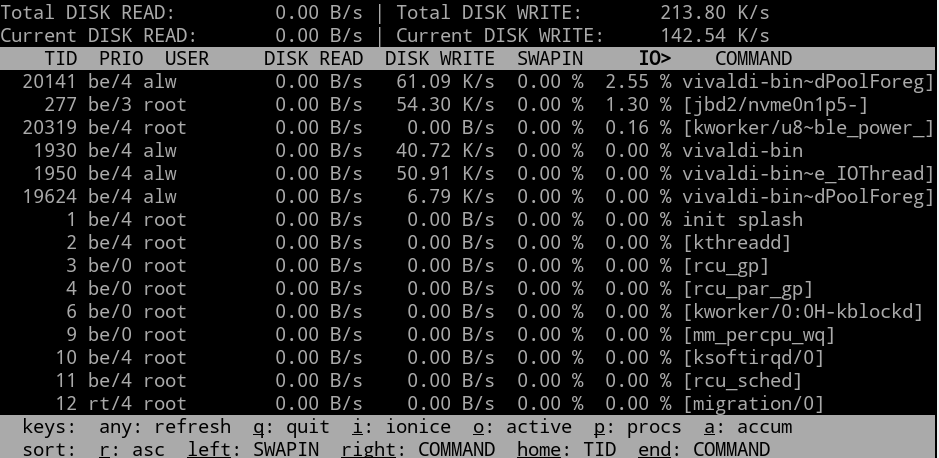
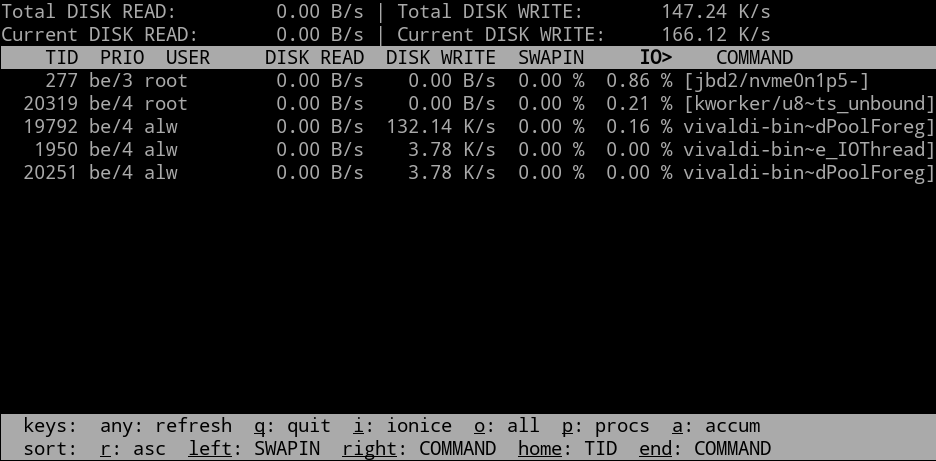
. This program shows you the total and current disk read and write numbers for the file system and also shows you who is eating up the most disk I/O.  This screen looks busy:</p><p><a href=„https://hackaday.com/wp-content/uploads/2020/09/iotop.png“ target=„_blank“><img data-attachment-id=„434579“ data-permalink=„https://hackaday.com/2020/11/05/linux-fu-monitor-disks/iotop/“ data-orig-file=„https://hackaday.com/wp-content/uploads/2020/09/iotop.png“ data-orig-size=„939,458“ data-comments-opened=„1“ data-image-meta=„{"aperture":"0","credit":"","camera":"","caption":"","created_timestamp":"0","copyright":"","focal_length":"0","iso":"0","shutter_speed":"0","title":"","orientation":"0"}“ data-image-title=„iotop“ data-image-description=„“ data-image-caption=„“ data-medium-file=„https://hackaday.com/wp-content/uploads/2020/09/iotop.png?w=400“ data-large-file=„https://hackaday.com/wp-content/uploads/2020/09/iotop.png?w=800“ class=„aligncenter size-full wp-image-434579“ src=„https://hackaday.com/wp-content/uploads/2020/09/iotop.png“ alt=„“ width=„800“ height=„390“ srcset=„https://hackaday.com/wp-content/uploads/2020/09/iotop.png 939w, https://hackaday.com/wp-content/uploads/2020/09/iotop.png?resize=250,122 250w, https://hackaday.com/wp-content/uploads/2020/09/iotop.png?resize=400,195 400w, https://hackaday.com/wp-content/uploads/2020/09/iotop.png?resize=800,390 800w“ referrerpolicy=„no-referrer“ /></a></p><p>Here’s a tip. If you look at the bottom of the screen there are some key commands. The O key will hide all inactive processes (or show them if they were hidden). That makes the output manageable:</p><p><a href=„https://hackaday.com/wp-content/uploads/2020/09/iotop2.png“ target=„_blank“><img data-attachment-id=„434581“ data-permalink=„https://hackaday.com/2020/11/05/linux-fu-monitor-disks/iotop2/“ data-orig-file=„https://hackaday.com/wp-content/uploads/2020/09/iotop2.png“ data-orig-size=„936,461“ data-comments-opened=„1“ data-image-meta=„{"aperture":"0","credit":"","camera":"","caption":"","created_timestamp":"0","copyright":"","focal_length":"0","iso":"0","shutter_speed":"0","title":"","orientation":"0"}“ data-image-title=„iotop2“ data-image-description=„“ data-image-caption=„“ data-medium-file=„https://hackaday.com/wp-content/uploads/2020/09/iotop2.png?w=400“ data-large-file=„https://hackaday.com/wp-content/uploads/2020/09/iotop2.png?w=800“ class=„aligncenter size-full wp-image-434581“ src=„https://hackaday.com/wp-content/uploads/2020/09/iotop2.png“ alt=„“ width=„800“ height=„394“ srcset=„https://hackaday.com/wp-content/uploads/2020/09/iotop2.png 936w, https://hackaday.com/wp-content/uploads/2020/09/iotop2.png?resize=250,123 250w, https://hackaday.com/wp-content/uploads/2020/09/iotop2.png?resize=400,197 400w, https://hackaday.com/wp-content/uploads/2020/09/iotop2.png?resize=800,394 800w“ referrerpolicy=„no-referrer“ /></a></p><p>You can get the same effect with the
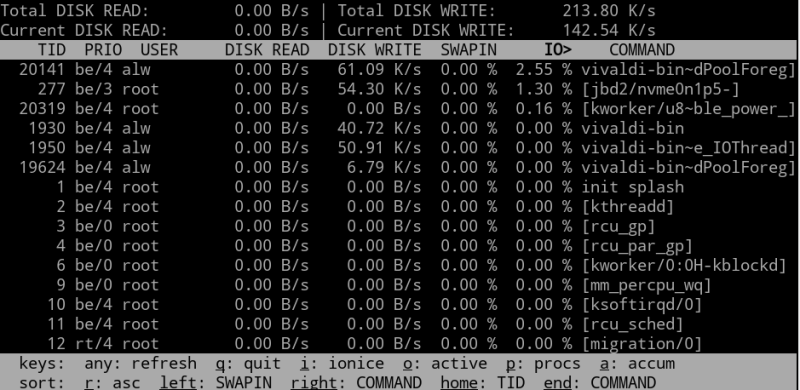
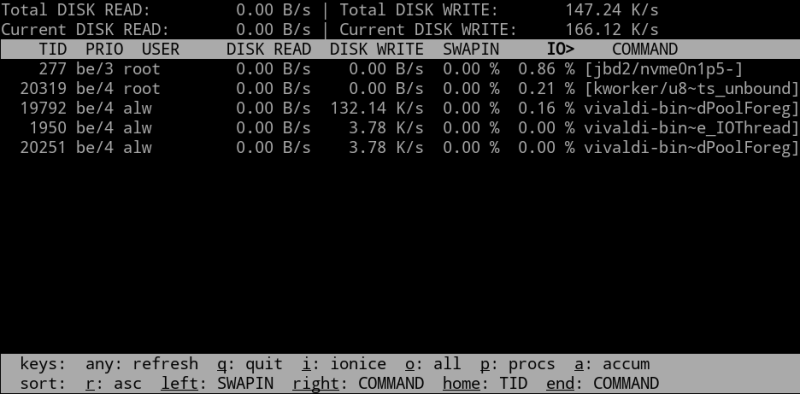
-o
command line option. Note the other keyboard commands let you select threads instead of processes, change display options, and set the
ionice
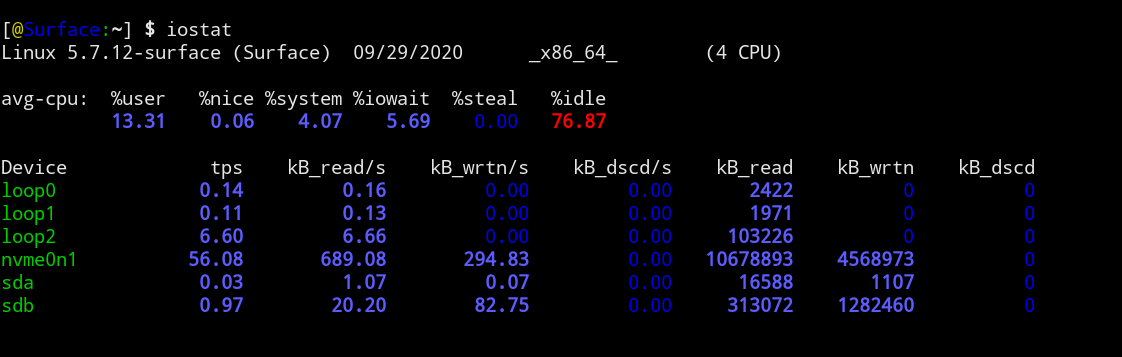
priority for a process.</p><h2>There’s iostat</h2><p>If you are more interested in this kind of data per device instead of per process or thread, try
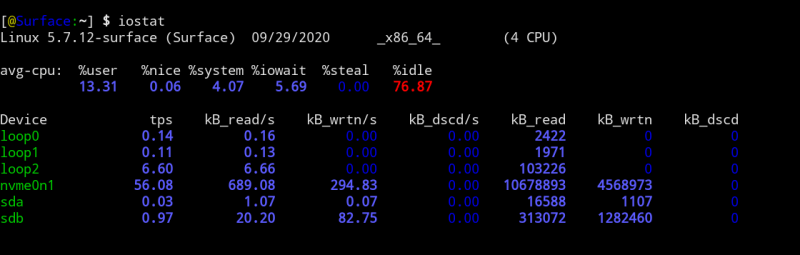
iostat
. It shows some process information, too but it is all nicely summarized:</p><p><a href=„https://hackaday.com/wp-content/uploads/2020/09/iostat.png“ target=„_blank“><img data-attachment-id=„434582“ data-permalink=„https://hackaday.com/2020/11/05/linux-fu-monitor-disks/iostat/“ data-orig-file=„https://hackaday.com/wp-content/uploads/2020/09/iostat.png“ data-orig-size=„1122,357“ data-comments-opened=„1“ data-image-meta=„{"aperture":"0","credit":"","camera":"","caption":"","created_timestamp":"0","copyright":"","focal_length":"0","iso":"0","shutter_speed":"0","title":"","orientation":"0"}“ data-image-title=„iostat“ data-image-description=„“ data-image-caption=„“ data-medium-file=„https://hackaday.com/wp-content/uploads/2020/09/iostat.png?w=400“ data-large-file=„https://hackaday.com/wp-content/uploads/2020/09/iostat.png?w=800“ class=„aligncenter size-full wp-image-434582“ src=„https://hackaday.com/wp-content/uploads/2020/09/iostat.png“ alt=„“ width=„800“ height=„255“ srcset=„https://hackaday.com/wp-content/uploads/2020/09/iostat.png 1122w, https://hackaday.com/wp-content/uploads/2020/09/iostat.png?resize=250,80 250w, https://hackaday.com/wp-content/uploads/2020/09/iostat.png?resize=400,127 400w, https://hackaday.com/wp-content/uploads/2020/09/iostat.png?resize=800,255 800w“ referrerpolicy=„no-referrer“ /></a></p><p>This command just runs one time and gives you a result. If you want to repeat it periodically, you can add a time to wait between reports and an optional count of how many times to execute. If you do that, you might want to add the
-t
option to get a timestamp, too.</p><pre>iostat -t 5</pre><p>That causes the output to scroll, though, so if you are monitoring, you might prefer:</p><pre>watch -n 5 iostat</pre><p>There are more stats available with the -x flag and the -z flag will suppress devices that have no data.</p><h2>Meet duf</h2><p>You probably won’t find
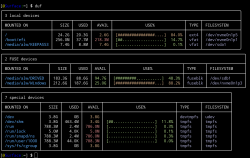
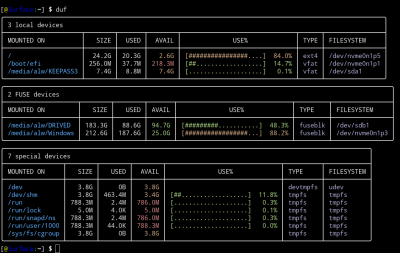
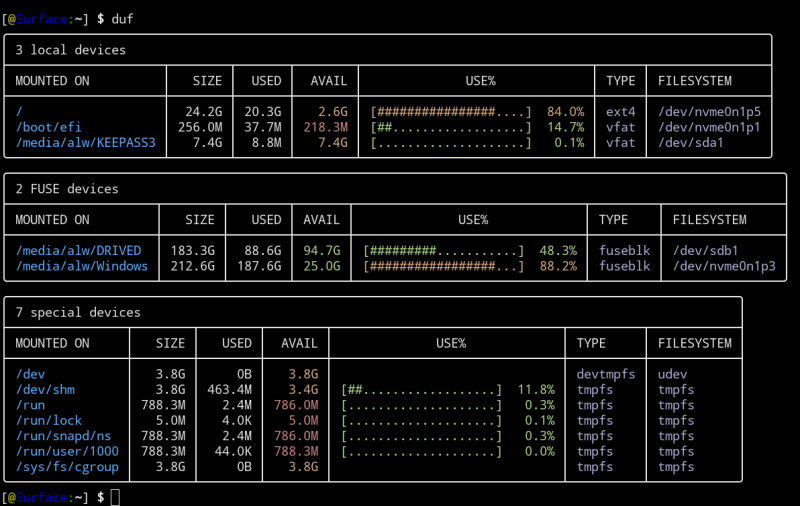
duf
on your system, but you can install it from <a href=„https://github.com/muesli/duf“ target=„_blank“>GitHub</a>. It is true that you can get the same results from df and a few other commands, but
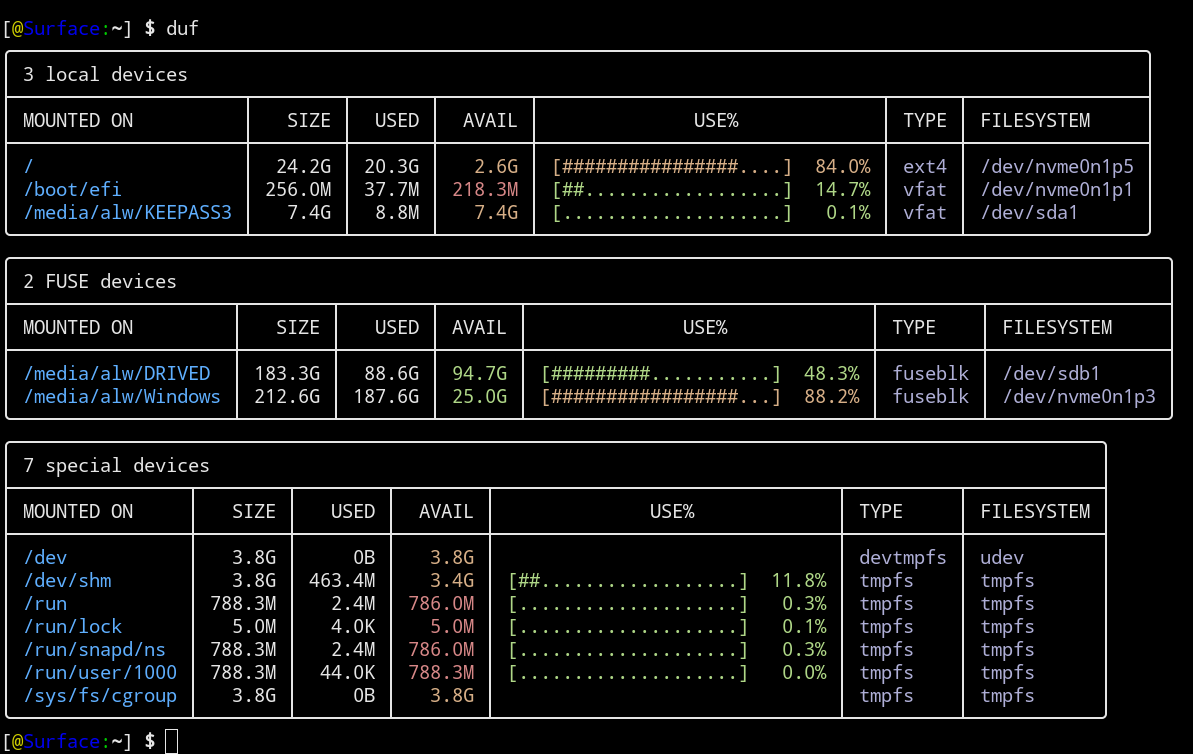
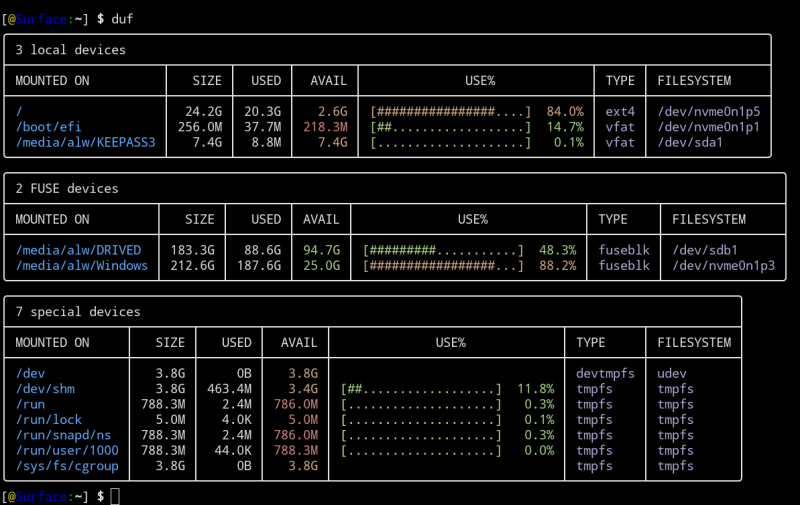
duf
creates easy-to-read output:</p><p><a href=„https://hackaday.com/wp-content/uploads/2020/09/duf.png“ target=„_blank“><img data-attachment-id=„434588“ data-permalink=„https://hackaday.com/2020/11/05/linux-fu-monitor-disks/duf/“ data-orig-file=„https://hackaday.com/wp-content/uploads/2020/09/duf.png“ data-orig-size=„1193,754“ data-comments-opened=„1“ data-image-meta=„{"aperture":"0","credit":"","camera":"","caption":"","created_timestamp":"0","copyright":"","focal_length":"0","iso":"0","shutter_speed":"0","title":"","orientation":"0"}“ data-image-title=„duf“ data-image-description=„“ data-image-caption=„“ data-medium-file=„https://hackaday.com/wp-content/uploads/2020/09/duf.png?w=400“ data-large-file=„https://hackaday.com/wp-content/uploads/2020/09/duf.png?w=800“ class=„aligncenter size-full wp-image-434588“ src=„https://hackaday.com/wp-content/uploads/2020/09/duf.png“ alt=„“ width=„800“ height=„506“ srcset=„https://hackaday.com/wp-content/uploads/2020/09/duf.png 1193w, https://hackaday.com/wp-content/uploads/2020/09/duf.png?resize=250,158 250w, https://hackaday.com/wp-content/uploads/2020/09/duf.png?resize=400,253 400w, https://hackaday.com/wp-content/uploads/2020/09/duf.png?resize=800,506 800w“ referrerpolicy=„no-referrer“ /></a></p><p>There are command line options to hide devices, control the output width, and sort data differently. You can also set the maximum output width. Use the
--help
option to learn more.</p><h2>List Open Files with lsof</h2><p>If you ever want to know what files are open, that’s the job of
lsof
. The command gives a lot of information and you typically have a lot of open files on a running system, so you’ll usually add a file name or combine this with a
grep
to narrow things down.</p><p>Just remember that wildcards don’t work here. So the following command only shows you who has the directory /home/alw open. It does not show processes that have anything inside of /home/alw open:</p><pre>lsof /home/alw</pre><p>You can change that behavior, though, with the
-d
or
-D
options. The lowercase variant looks for the directory and files in the top level. The
-D
option does full-blown recursion. There are plenty of other options, too, if you want to look by user ID, command name, and more.</p><h2>Bonus Round: atop</h2><p>Another replacement for
top
is
atop
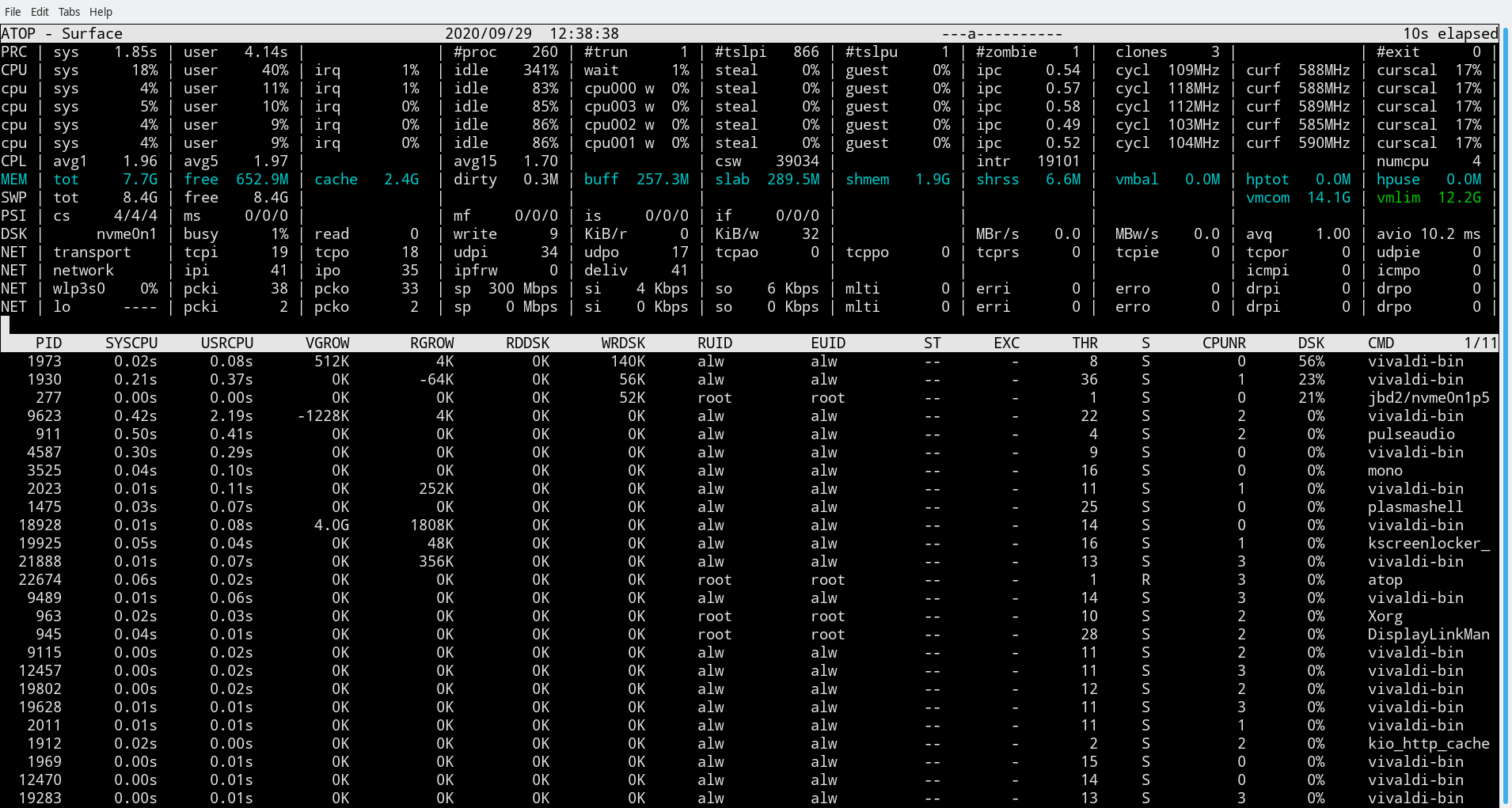
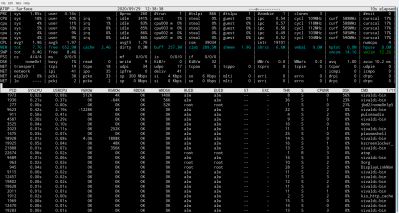
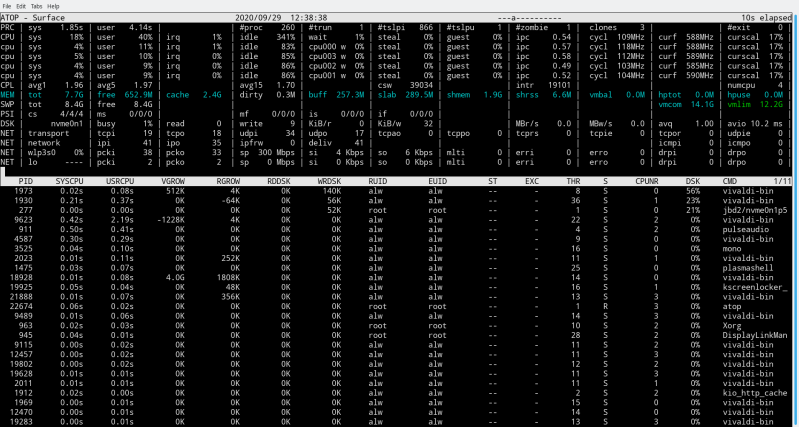
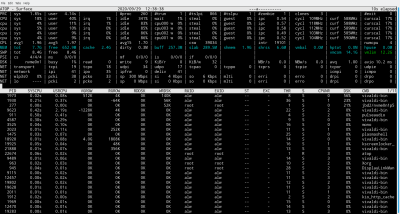
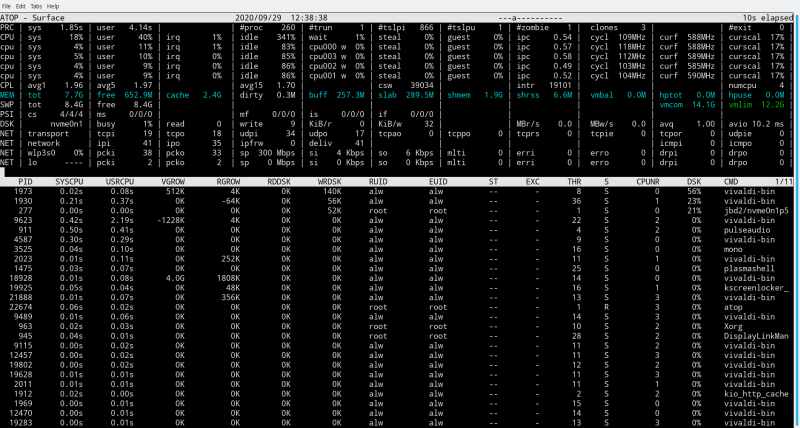
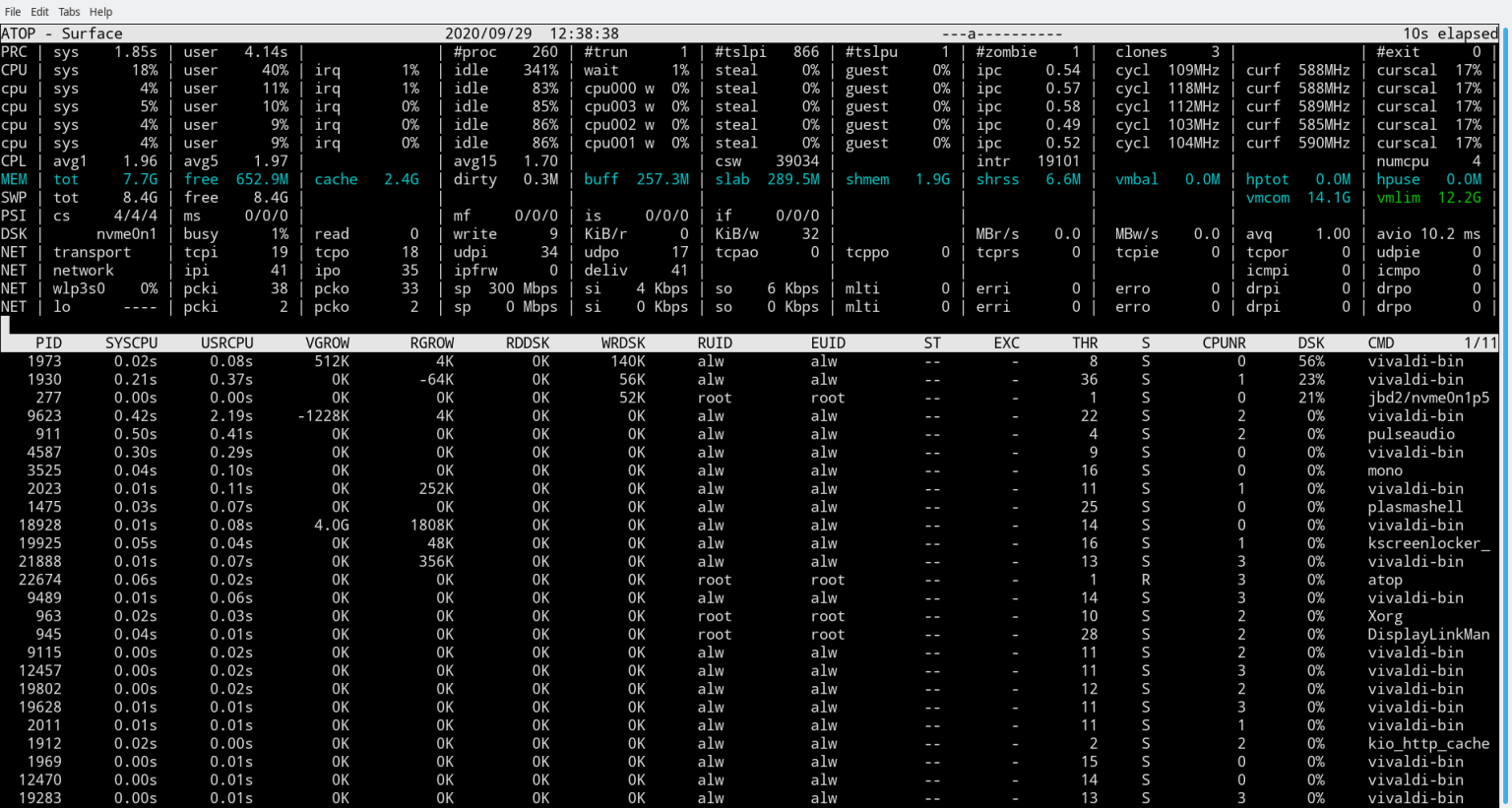
. While not strictly a disk monitoring tool, it does show disk usage per process and some overall stats. When the program usually starts, it shows some summary information at the top, including
DSK
which gives disk information. Those lines, by the way, will turn color as they get closer to 100% utilization. The lines at the bottom are similar to what you’d see from
top
.</p><p><a href=„https://hackaday.com/wp-content/uploads/2020/09/atop1.png“ target=„_blank“><img data-attachment-id=„434594“ data-permalink=„https://hackaday.com/2020/11/05/linux-fu-monitor-disks/atop1/“ data-orig-file=„https://hackaday.com/wp-content/uploads/2020/09/atop1.png“ data-orig-size=„1910,1021“ data-comments-opened=„1“ data-image-meta=„{"aperture":"0","credit":"","camera":"","caption":"","created_timestamp":"0","copyright":"","focal_length":"0","iso":"0","shutter_speed":"0","title":"","orientation":"0"}“ data-image-title=„atop1“ data-image-description=„“ data-image-caption=„“ data-medium-file=„https://hackaday.com/wp-content/uploads/2020/09/atop1.png?w=400“ data-large-file=„https://hackaday.com/wp-content/uploads/2020/09/atop1.png?w=800“ class=„aligncenter size-full wp-image-434594“ src=„https://hackaday.com/wp-content/uploads/2020/09/atop1.png“ alt=„“ width=„800“ height=„428“ srcset=„https://hackaday.com/wp-content/uploads/2020/09/atop1.png 1910w, https://hackaday.com/wp-content/uploads/2020/09/atop1.png?resize=250,134 250w, https://hackaday.com/wp-content/uploads/2020/09/atop1.png?resize=400,214 400w, https://hackaday.com/wp-content/uploads/2020/09/atop1.png?resize=800,428 800w, https://hackaday.com/wp-content/uploads/2020/09/atop1.png?resize=1536,821 1536w“ referrerpolicy=„no-referrer“ /></a></p><p>You can use the
d
command to display a disk view. In any view,
D
will sort by disk usage. A useful tool.</p><h2>Like Anything on Linux…</h2><p>Like anything else in Linux, there are dozens of other ways to get this kind of information. We’ve looked at some <a href=„https://hackaday.com/2017/11/09/linux-fu-system-administration-made-easier/“>dedicated monitoring</a> and administration tools before. If you want to learn more about the fields in
htop
(which are usually common to
top
or
atop
), there’s <a href=„https://hackaday.com/2020/01/30/understand-linux-htop-visually/“>a great visual guide</a>.</p> </html>
 Falls nicht anders bezeichnet, ist der Inhalt dieses Wikis unter der folgenden Lizenz veröffentlicht: CC Attribution-Noncommercial-Share Alike 4.0 International